



Defining Applications
To define an application:
Log on to the CipherTrust Manager GUI as administrator.
Open Application Data Protection.
In the left pane, click Applications. The list of applications is displayed on the screen.
On the Applications page, click Add Application. The Create Application wizard is displayed. Follow the steps to complete the setup.
c. Create and Associate Policy
d. Confirmation
Add General Info
Specify a unique Name for the application.
Select Connector Type from the drop-down list. Currently, only DPG is supported.
Click Next to go to the Settings screen.
Before proceeding to the next steps, ensure that the NAE interface with TLS, verify client cert, user name taken from client cert, auth request is optional mode is created on the CipherTrust Manager. Refer to CipherTrust Manager Interfaces for detailed instructions.
Configure Parameters
On the Settings screen, configure the following parameters.
a. Network Configuration Parameter
Field Description Mandatory Default NAE Interface Port Select interface of the NAE server.
Only the interfaces with TLS, verify client cert, user name taken from client cert, auth request is optional mode are supported.
The firewall rules for this interface must allow communication.Yes No default After selecting the NAE interface, you can choose to ignore the rest of the configurations and instead, use the default values to define your application. To do so, click Next.
b. SSL Configuration
Field Description Mandatory Default Select a local CA The local CA to authenticate the user defined in the Common Name. The CA must be associated with the interface selected in the previous step. No CipherTrust Root CA Verify SSL Certificate Flag to enable client to verify the IP address/hostname against the Common Name (CN) or the Subject Alternative Name (SAN) in the server certificate presented by the CipherTrust Manager when communicating over NAE-XML. No Disabled TLS to Appserver Allows DPG and the Application Server to communicate over TLS. If enabled, following parameters are required:
— TLS Enabled: Defines whether to enable TLS. Set to true to allow DPG to communicate with the upstream server over TLS. Set to false to use TCP.
— TLS Skip Verify: If set to false, DPG verifies the upstream server certificates.No By default, TLS Enabled and TLS Skip Verify parameters are enabled c. CSR Parameters
Field Description Mandatory Default Common Name Select the user from the drop-down list. This is the DPG user who will interact with CM over NAE-XMl.
Note: The selected user must exist in the root domain.No No default City Name of the city. No No default Country Name of the country. No No default State Name of the state. No No default Organization Name Organization name. No No default Organization Unit Organization unit. No No default Email Valid email id. No No default Certificate Duration Validity period of a client certificate. No 730 d. Logging
Field Description Mandatory Default Log Level The level of logging to determine verbosity of clients logs.
Options
— ERROR
— WARN
— INFO
— DEBUGNo WARN Log Type Type of the log. The log type for DPG is Console. Not configurable Console e. Connection Configuration
Field Description Mandatory Default Maximum Idle Connection Specifies the maximum number of idle (keep-alive) connections for all hosts. A value of 0 means no limit. No 10000 Maximum Idle Connection Per Host Specifies the maximum idle (keep-alive) connections to keep for each host. No 10000 Dial Timeout Specifies the maximum duration (in seconds) the DPG server will wait for a connection with the Application Server to succeed. No 10 Dial Keep Alive Specifies the interval (in seconds) between keep-alive probes for an active network connection. No 10 Connection Idle Timeout The time a connection is allowed to be idle in the connection pool before it gets automatically closed. No 600000 Connection Retry Interval The amount of time to wait before trying to reconnect to a disabled server. No 600000 Connection Timeout Connection timeout value for clients. No 60000 Connection Read Timeout Read timeout value for clients. No 7000 Use Persistent Connections Whether the persistent connections is enabled.
Options
— true
— falseNo True Size of Connection Pool The maximum number of connections that can persist in connection pool. No 300 Load Balancing Algorithm Determines how the client selects a Key Manager from a load balancing group.
Options
— round-robin
— randomNo round-robin Cluster Synchronization Delay The total amount of time to spend trying to make requests on keys go to the same device the key create or latest key modify went. No 170 Heartbeat Interval Time interval (in seconds) after which the client needs to send heartbeat notification to the CipherTrust Manager to get updated policies and configurations. No 300 Heartbeat Timeout Count Number of missed heartbeats after which the client mark a CipherTrust Manager inactive. No -1 Heartbeat is a mechanism that notifies a client about any change in policies and configurations. The client sends the heartbeat to the CipherTrust Manager indicating that it is alive. In response, the CipherTrust Manager notifies client about any changes in the configurations and policies. To know more about the heartbeat parameters, refer to Heartbeat Configuration.
f. Local Encryption Parameters
Field Description Mandatory Default Symmetric Key Cache Enabled Determines whether the symmetric key caching feature is enabled. Not configurable Always enabled Symmetric Key Cache Expiry Determines the minimum amount of time a key can be cached. No 43200 g. Authentication Method
Field Description Mandatory Default Scheme Name Authentication method used to validate the identity of the application users.
Following methods are allowed:
— Basic: In this scheme, username and password are passed into the Authorization request header. The username and password are encoded in Base64 format.
— Bearer: In this scheme, security token (a cryptic string) is granted to the application user. The application user must send this token in the Authorization request header when making any reveal requset to DPG.Yes Basic Token Field Specifies the field that contains the username in authorization token based on which the level of access control over reveal operation will be identified. Required when Beareris selected as the authenticatoin method.No default Click Next to go to Policy page.
Before moving to next step, we recommend you to read about DPG Policies.
Create and Associate Policy
On the DPG Policy page, click Create Endpoint.
On the Create Endpoint screen, perform the following steps:
a. Enter the API URL. This is the URL of the application for which the DPG will protect the data.
b. Select Method from the drop-down list. Supported methods are:
POST
GET
PUT
PATCH
DELETE
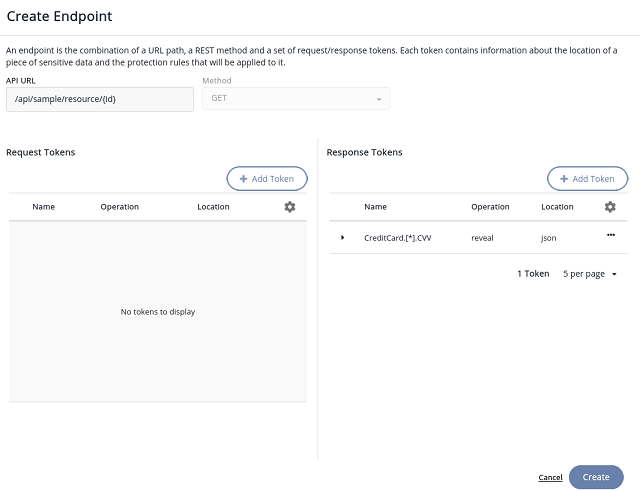
You must configure JSON path/URL parameters separately for each method.
c. Click Create Token to configure JSON path/URL. For same method, you can configure Request and Response simultaneously.
d. On the Create Token in Request, enter/select the following details.
Field Description Name Specify the complete JSON path/URL parameters to be protected/revealed. Location Location of the data.
Possible options
— JSON: If data to protect is in JSON body
— URL: If data to be protected is in URL parameters.Operation Cryptographic operation to be performed.
Possible options
— Protect
— RevealProtection Policy Policy used to protect/reveal a piece of data. Select Protection policy form the drop-down list. Refer to Managing Protection Polices for details. Access Policy Access policy determines how the data will be revealed to the application users. This parameter appears on the UI if reveal operation is selected. Refer to Managing Access Policies for details. If your JSON body has an array of objects, you can specify the sensitive tokens in the format shown in the below example:
                {
                    "Name": "John",
                    "CreditCard":[
                    {
                        "CCNumber": "1234-5678-9012-3456",
                        "CVV": "123",
                        "Expiry": "12/03"
                    }
                    ],
                    "Amount" : "250"
                }
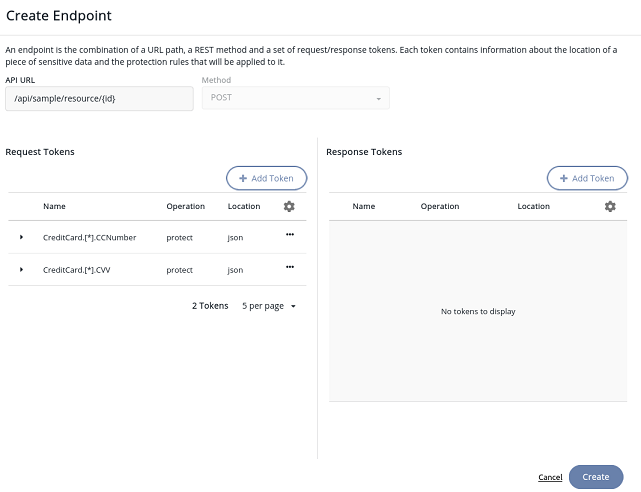
In this example, CreditCard is the array of objects (CCNumber, CVV, Expiry). To protect/reveal CCNumber, specify the token as
CreditCard.[*].CCNumberin the request/response of the DPG policy. Similarly, to protect/reveal CVV, use the following format:CreditCard.[*].CVV.If a set of data is already protected with a protection policy, ensure to reveal the data with the same protection policy.
g. Click Create. The newly created policy is listed on the DPG Policy page.
Now, to configure JSON path/URL parameters for other methods, click Create Endpoint and repeat steps a to g else, click Next to go to the Confirmation screen.
The below diagrams show that different methods require separate endpoint configurations.
Confirmation
On the Create Application page, verify the application details. The Confirmation screen displays general information, settings, and DPG policy.
If you want to modify any detail, click Edit and update the details.
Click Create. At this step, a Registration Token is returned. The clients will use this token to get themselves registered on the CipherTrust Manager.
Click Close to exit the setup. The newly defined application is added to the list of Applications.