



Installation
CipherTrust Application Data Protection (CADP) for C is supported on Microsoft Windows and Linux environments. This section covers how to install CADP for C:
Installing CADP for C on Linux
You can install CADP for C on Linux in the following two ways:
Note
To generate SSL/TLS certificates using the CADP for C installer, the CipherTrust Manager user must have the CA Admins, Read-Only Admins, and Key Users privileges.
Using Installation Script
Note
If you plan to use an external Certificate Authority (CA) with the CipherTrust Manager and CADP for C, then you will need to configure the SSL settings for the CADP for C (client) manually. During the CADP for C installation, enter TCP as the Key Management Server Protocol when prompted. Then after the installation, manually configure the client for SSL settings. Refer to Configuring the Client for more information.
-
Download the CADP for C installation file from the Thales Customer Support Portal.
-
Log on to the client machine on which to install CADP for C.
-
Unzip and untar the installation file. The untar process creates a directory called CADP_for_C-x.xx.0.000.
tar xvfz "CADP_for_C-x.xx.0.000.tar.gz" -
Navigate to the CADP_for_C-x.xx.0.000 directory.
cd CADP_for_C-x.xx.0.000 -
Install CADP for C by running
install.sh.sudo ./install.shThe next screen displays the End User License Agreement.
-
Read the agreement. If you agree with the terms of the end-user license agreement, accept it by entering
Yfor yes.Do you accept the terms of the End User License Agreement(Y/N)[N]? Y -
Specify the installation folder
<install_folder>in which to store the installation to complete the installation. The default folder is/opt. If you wish to change this, enter the name of the folder to use for this installation. Otherwise, press Enter to accept the default.Install CADP for C to path [/opt]:<install_folder> -
Enter the Key Management Server information to be used to communicate with the CipherTrust Manager. Follow the prompts to enter the information as per your environment.
Key Management Server IP Address:<cm_ip> /IP address or hostname of the CipherTrust Manager. Key Management Server Port [9000]:<cm_port> /Server port number of the CipherTrust Manager interface. Key Management Server Protocol (ssl/tcp)[ssl]:<protocol> /Protocol to use for communication between the client and the CipherTrust Manager. Key Management Server username:<cm_user> /Username associated with the user account to use to log into the CipherTrust Manager. For example, 'admin'. Key Management Server user password:<cm_user_password> /Password (associated with the username) to use to log into the CipherTrust Manager. -
If you specified to use the SSL protocol in the previous step, enter the information to be incorporated into a Certificate Signing Request (CSR) for the SSL client certificate:
Enter Passphrase to protect private key: /The passphrase associated with the private key.

====Enter information that will be incorporated into your certificate request.====

Country code (2 letter code e.g., US):
State or Province name (e.g., California):
Locality or city name (e.g., San Jose):
Organization name (e.g., company):
Organization Unit name (e.g., Section):
Common Name (eg, your name or your server's hostname):
Email Address (optional):
For example:
Enter Passphrase to protect private key:
====Enter information that will be incorporated into your certificate request.====

Country code (2 letter code e.g., US): IN
State or Province name (e.g., California): UP
Locality or city name (e.g., San Jose): Noida
Organization name (e.g., company): Thales
Organization Unit name (e.g., Section): DIS
Common Name (eg, your name or your server's hostname): Server1x
Email Address (optional):
On successful installation, the message
CADP for C is completeddisplays.CADP for C Installation is completed! You can edit the configuration files located at: /opt/CipherTrust/CADP for C/CADP_PKCS11.properties /opt/CipherTrust/CADP for C/CADP_CAPI.properties
Silent Installation
For the silent installation on Linux, you will need to provide the basic configuration settings in the configuration file named cadp_for_c_basic.conf first. During the the silent installation, the CADP_PKCS11.properties and CADP_CAPI.properties files are automatically updated with the settings you provide in the configuration file.
For more information about the configuration file and how to configure it, see Modifying the CADP for C Configuration File.
To install CADP for C on Linux silently:
-
Modify the
cadp_for_c_basic.conffile per your environment. -
Execute the following command:
sudo ./install.sh -c utilities/cadp_for_c_basic.conf -d /home/CADP_for_C -yWhere:
-
-c: Indicates the path to the 'cadp_for_c_basic.conf' configuration file.
-
-d: Indicates the path to the CADP for C installation folder in which to store the installation.
-
-y: Indicates to accept end-user license agreement (EULA).
For example:
[user@test CADP_for_C-8.13.0.003]#sudo ./install.sh -c utilities/cadp_for_c_basic.conf -d /home/CADP_for_C -y
CADP for C Installation is completed!
You can edit the configuration files located at:
/home/CADP_for_C/CipherTrust/CADP_for_C/CADP_PKCS11.properties
/home/CADP_for_C/CipherTrust/CADP_for_C/CADP_CAPI.properties
On successful installation, the message
CADP for C Installation is completed!displays. -
Installing CADP for C on Windows
Note
If you do not have Visual Studio installed on the machine(s) you plan to run the CADP for C utilities, when you attempt to run a utlility, it may fail and you may not obtain the certificates while installing. If you do run into this issue, install the Microsoft VC++ 2010 re-distributable (VCredist2010_x64) package. Refer to the Microsoft website to download the latest versions of the Microsoft VC++ 2010 re-distributable packages (for 64-bit per your system configuration).
Note
To generate SSL/TLS certificates using the CADP for C installer, the CipherTrust Manager user must have the CA Admins, Read-Only Admins, and Key Users privileges.
You can install CADP for C on Windows in the following two ways:
GUI Based Installation
Note
If you plan to use an external CA with the CipherTrust Manager and CADP for C, then you will need to configure the SSL settings for the CADP for C (client) manually. During the CADP for C installation, select TCP within the Protocol Information page when prompted. Then after the installation, manually configure the client for SSL settings. Refer to Configuring the Client for more information.
-
Download the CADP for C setup file from the Thales Customer Support Portal.
-
Double-click the setup executable (
setup.exe) to start the InstallShield Wizard. The Welcome page displays. Click Next.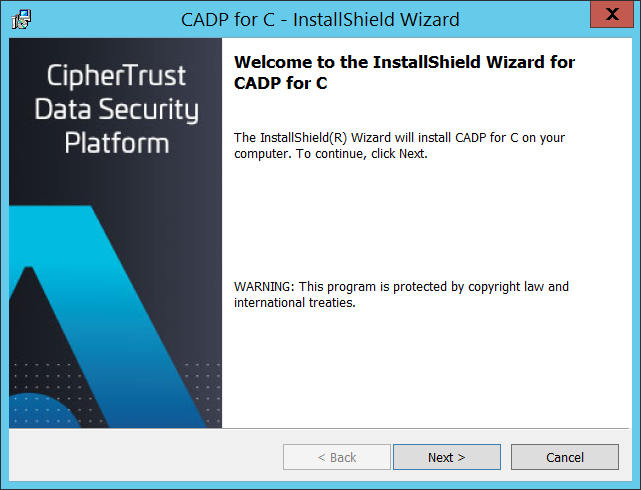
-
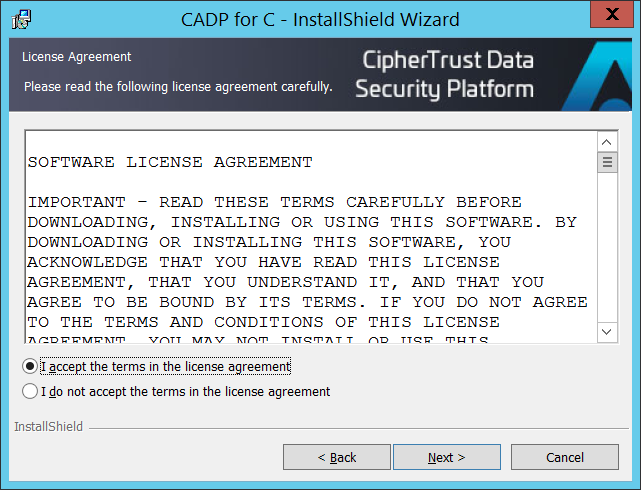
From the License Agreement page, select I accept the terms in the license agreement and click Next if you wish to accept the terms of the license agreement.
-
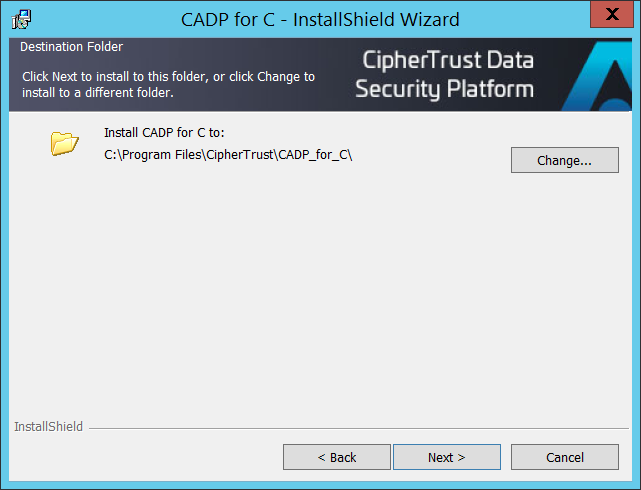
From the Destination Folder page, click Next to install to the default installation folder. If you wish to select a different installation folder to use for this installation, click Change, enter the path to the folder of your choice, and then click Next to install to the specified installation folder.
-
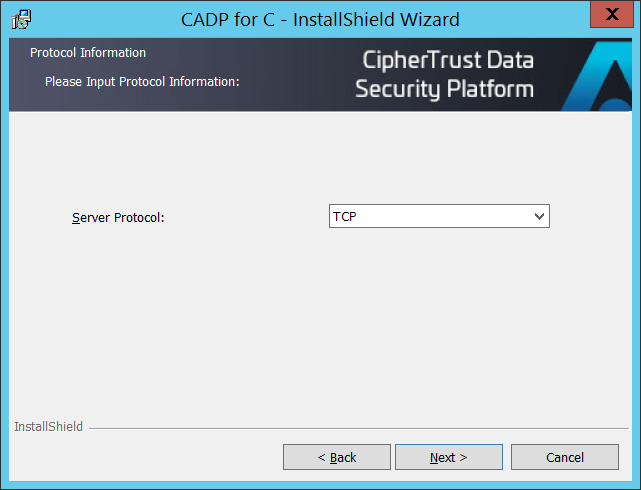
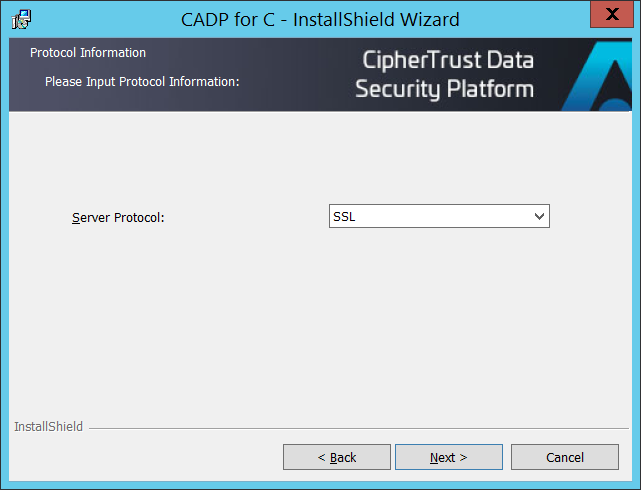
From the Protocol Information page > Server Protocol list, select the protocol to use to communicate with the CipherTrust Manager. The options are TCP and SSL. The default server protocol to use is SSL.
If you select TCP as the server protocol
-
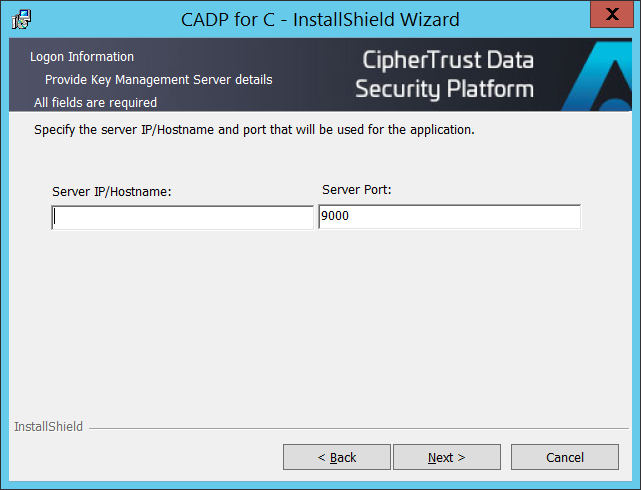
From the Logon Information page, enter the information to be used to communicate with the CipherTrust Manager:
-
Server IP/Hostname: IP address or hostname of the CipherTrust Manager.
-
Server Port: Server port number of the CipherTrust Manager interface.
-
-
Click Next.
If you select SSL as the server protocol
-
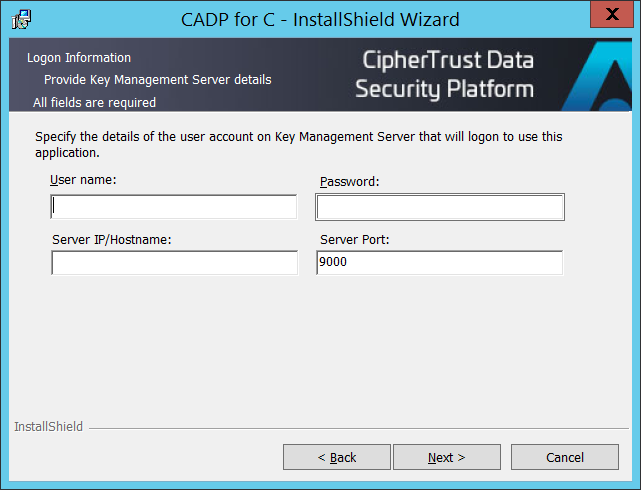
From the Logon Information page, enter the information to be used to communicate with the CipherTrust Manager:
-
User name: Username associated with the user account to use to log into the CipherTrust Manager.
-
Password: Password (associated with the username) to use to log into the CipherTrust Manager.
-
Server IP/Hostname: IP address or hostname of the CipherTrust Manager.
-
Server Port: Server port number of the CipherTrust Manager interface.
-
-
Click Next.
-
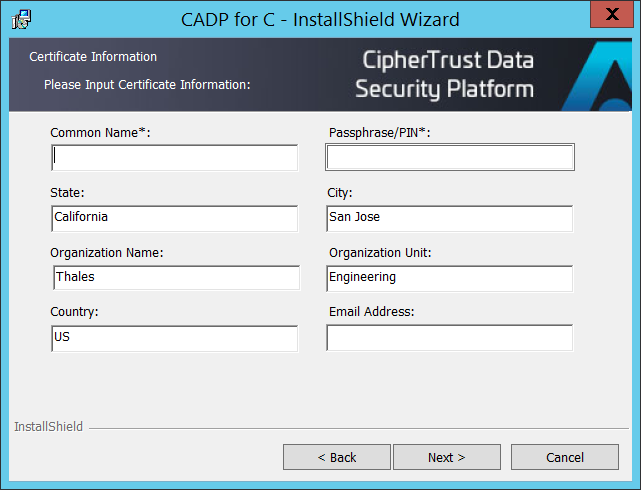
From the Certificate Information page, enter the information to be incorporated into a Certificate Signing Request (CSR) for the SSL client certificate:
-
Common Name (mandatory)
-
Passphrase/PIN (mandatory)
-
State
-
City
-
Organization Name
-
Organization Unit
-
Country
-
Email Address
-
-
Click Next.
-
-
Click Install to begin the installation process.
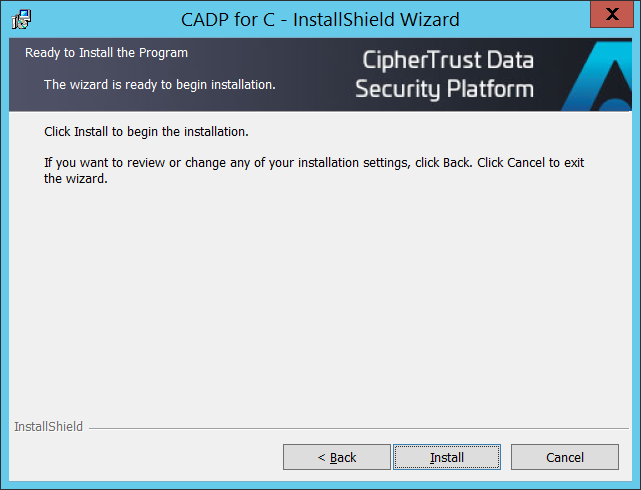
-
After the installation is complete, the 'InstallShield Wizard Completed' page displays. Click Finish to exit the installation wizard.
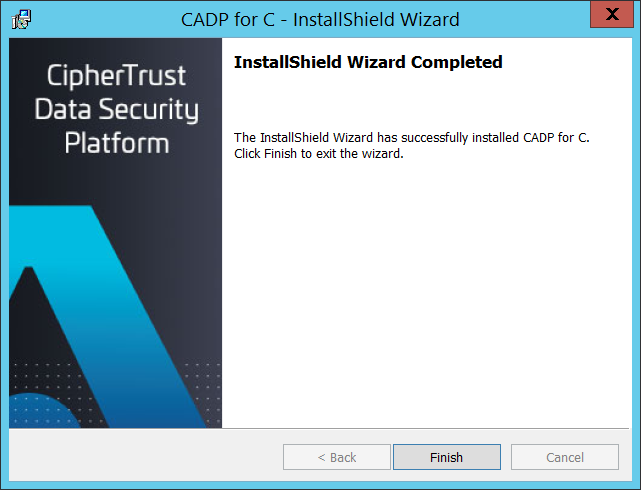
Silent Installation
For the silent installation on Windows, you will need to provide the basic configuration settings in the configuration file named cadp_for_c_basic.conf first. During the the silent installation, the CADP_PKCS11.properties and CADP_CAPI.properties files are automatically updated with the settings you provide in the configuration file.
For more information about the configuration file and how to configure it, see Modifying the CADP for C Configuration File.
To install CADP for C on Windows silently:
-
Modify the
cadp_for_c_basic.conffile per your environment. -
Execute the following command:
setup.exe /s /v"/qn CONFIGPATH=<path of cadp_for_c_basic.conf file>"For example:
setup.exe /s /v"/qn CONFIGPATH=C:\Users\Administrator\Desktop\cadp_for_basic.conf"

