



Enabling AWS Virtual Private Cloud with COS
Accessing Amazon AWS S3 buckets through a private interface route from your Virtual Private Cloud (VPC) without going through the public internet offers stronger security. You use VPC service endpoints to accomplish this interaction.
VPC S3 Service Endpoints
There are currently two available S3 service endpoints: Gateway Endpoints and Interface Endpoints. In both cases, your network traffic remains on the AWS network.
Here are some differences between the two endpoints:
| Gateway endpoints for Amazon S3 | Interface endpoints for Amazon S3 |
|---|---|
| Accesses Amazon S3 through public IP addresses | Accesses Amazon S3 through your private IP addresses |
| Uses the same Amazon S3 DNS names | Requires endpoint-specific Amazon S3 DNS names |
| Does not allow access from on-premises | Allows access from on-premises |
| Does not allow access from another AWS Region | Allows access from a VPC in another AWS Region by using VPC peering or AWS Transit Gateway |
| Free | Billed for in-VPC traffic |
Configuring Interface Endpoints
The following sections describe how to setup a sample VPC environment that uses Interface endpoints providing private access to S3. You should setup the environment based on your use cases.
Note
Ensure that the VPC endpoints, EC2 instances and all resources, are created in the same region.
Creating the VPC
-
In the Console Home window, click View all Services.
-
In the Networking and Content Delivery section, click VPC.
-
On the VPC dashboard, click Create VPC.
-
In the Resource to create field, select VPC and more. This also includes the networking that includes both public and private subnets.
-
For VPC endpoints, select None since you are using Interface Endpoints, not S3 Gateway endpoints.
-
For the rest of the configuration choices, use the default values.
-
Click Create VPC to finish creating the VPC.
Creating the AWS S3 Interface Endpoint
-
In the VPC Dashboard, click PrivateLink and Lattice > Endpoints.
-
Click Create Endpoint.
-
Name the endpoint.
-
For type, select AWS services.
-
For services, type s3 into search field.
-
Select an s3 service with type: Interface.

-
In the network setting field, select the VPC in which to create the endpoint.
-
For additional settings:
a. Select: Enable DNS name.
b. Disable: Enable private DNS only for inbound endpoint
c. Select your subnet: private.
Note
-
This will be your main, primary subnet and you cannot change or delete it in the future.
-
If a private one was chosen, then you will need to later add a public one or vice-versa. This step entails adding an additional network interface attached to either a private or public subnet, depending on the primary subnet.
-
-
Click Create endpoint.
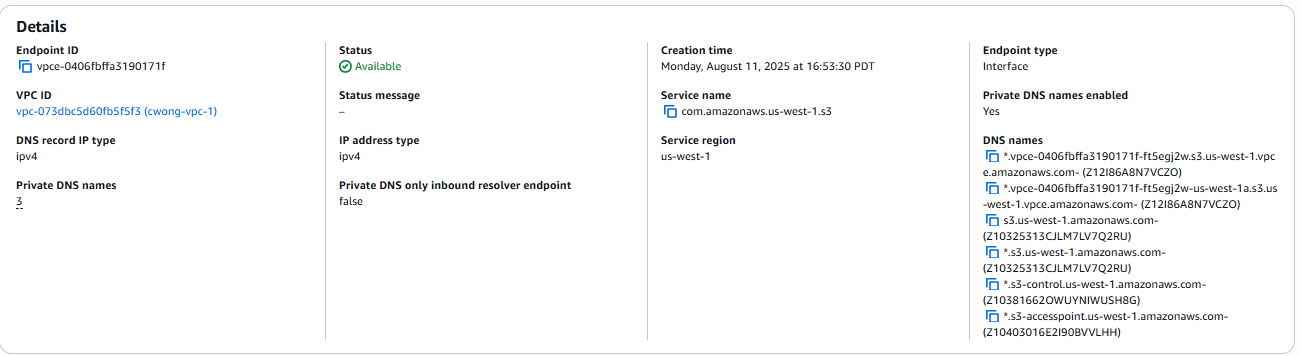
The following is an example for an endpoint:
Accessing AWS S3
Prerequisites
- Setup your CTE client with RedHat Enterprise Linux. Make sure that you install the required RPMs to support CTE and ensure that CTE starts up and successfully registers with CipherTrust Manager.
Examples
-
In the VPC dashboard, select your VPC and select your subnet.
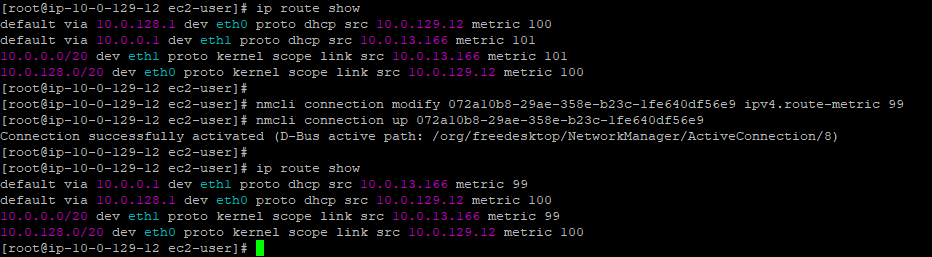
The following example shows a client with the main network interface etho0, associated with the private subnet. Since CTE COS calls STS using a public endpoint, you need to raise the public interface (eth1) priority, i.e. 99. Otherwise, the STS request gets routed through the private subnet and will simply hang and time out.
-
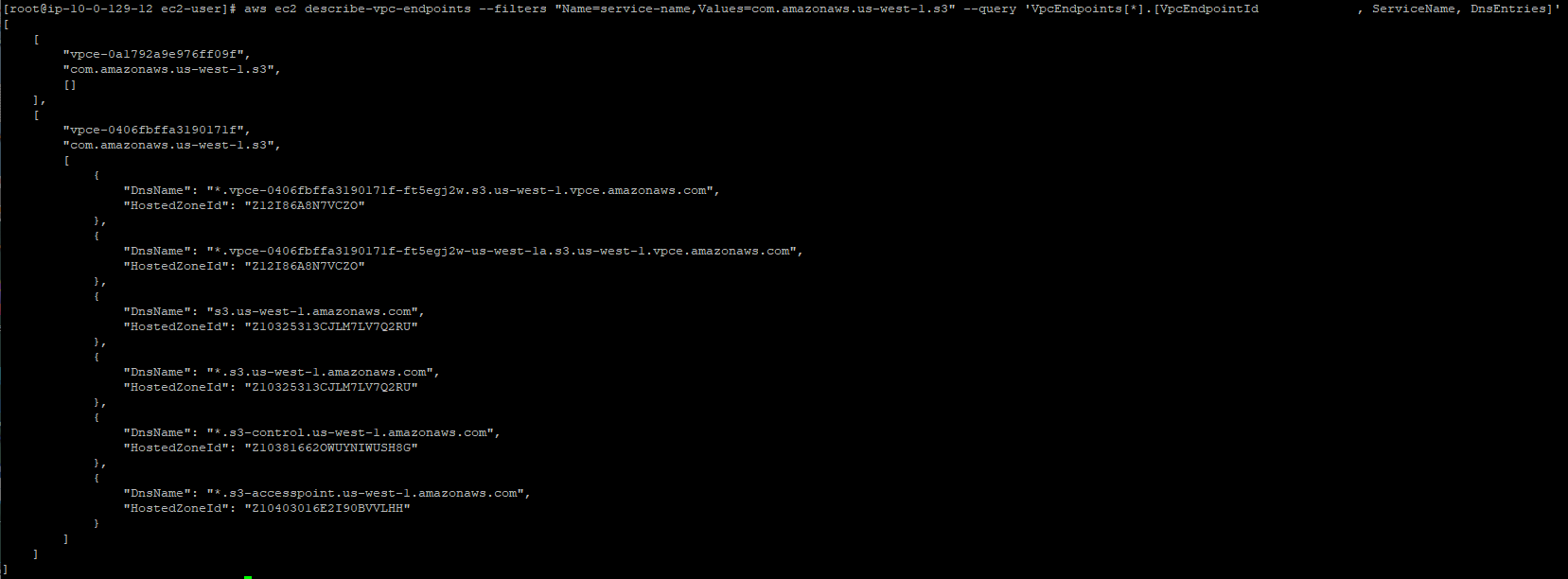
When you specify the private endpoint, use the endpoint DNS names in the detail information. The following example illustrates the detail:
- The following example displays the list the contents of the S3 bucket through CTE COS.

Note
The endpoint-url "bucket" is the word "bucket," it is not a variable. Do not replace it with your bucket name.

