



Setup
The SAS PCE Enterprise Virtual Appliance wizard configures the SAS Management API for the primary tenant you entered during first-boot. If you create additional (child) tenants in SAS PCE Console after the appliance is already running, follow the steps on this page to enable the SAS Management API for each new tenant.
Prerequisites
-
The appliance is already configured (
sudo configure-saehas completed) and the primarysas-mgmtclient works end-to-end. -
You know the child tenant's SAS PCE tenant code and opertaor UUID.
Overview of the workflow
The procedure imports a SAE client template, sets three protocol mappers so the issued JWT carries the child tenant's identifiers, and generates a new client secret. You then use the new client's credentials to call the SAS Management API for the child tenant.
Step 1 — Open the SAE Admin UI and switch to the SASManagementAPI realm
-
Open
https://<appliance-fqdn>/admin/in a browser. -
Sign in with the SAE admin account.
-
In the top-left realm selector, choose SASManagementAPI.
Step 2 — Download the client template JSON
Download the SAE client template from the link below and save it to your workstation:
The template ships with a default clientId as sas-mgmt-child and two placeholder strings that must be replaced. The clientId is always renamed in the SAE Admin UI after import or can be edited now in json; the two mapper placeholders can be edited now in the JSON (Step 3, Option A) or later in the Admin UI (Step 3, Option B). Both options produce the same result.
| Where | What to change |
|---|---|
clientId field (currently sas-mgmt-child) |
Rename in the Admin UI's Client ID field after import |
<Update me with tenant id> (appears 2 times — in the tenantId mapper and the user_tenant_id mapper) |
The child tenant's SAS PCE tenant code (for example TENANTB01). Must be identical in both mappers. |
<Update me with OPERATOR_UUID> (appears once — in the uuid mapper) |
The appliance's operator UUID. Run sudo sas-mgmt-info on the appliance to see it, or copy it from the primary sas-mgmt client's uuid mapper in the Admin UI. The same UUID is reused across all tenants. |
Do not change any other field in the file — these are shared across tenants. Only the three placeholders above change per tenant.
Step 3 — Import the client (choose Option A or Option B)
Both options end with the same imported client. Pick whichever editing style you prefer.
Option A — Edit the JSON first, then import
-
In your text editor, replace both
<Update me with tenant id>strings with the child tenant code and replace<Update me with OPERATOR_UUID>with the appliance operator UUID. Save the file. -
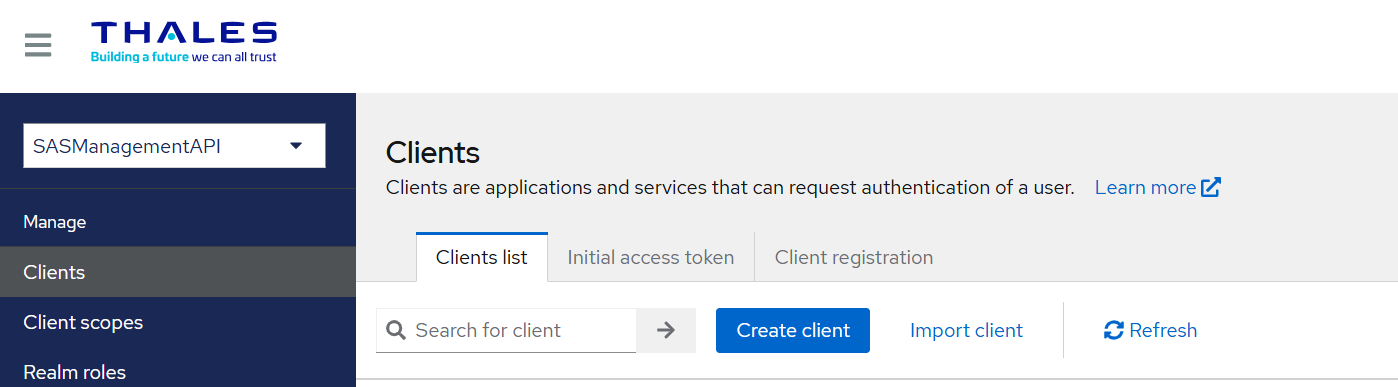
In the SAE Admin UI (SASManagementAPI realm), click Clients in the left menu, then Import client (top right).
-
In the Import client dialog, choose Browse and select your edited
sas-mgmt-child.json.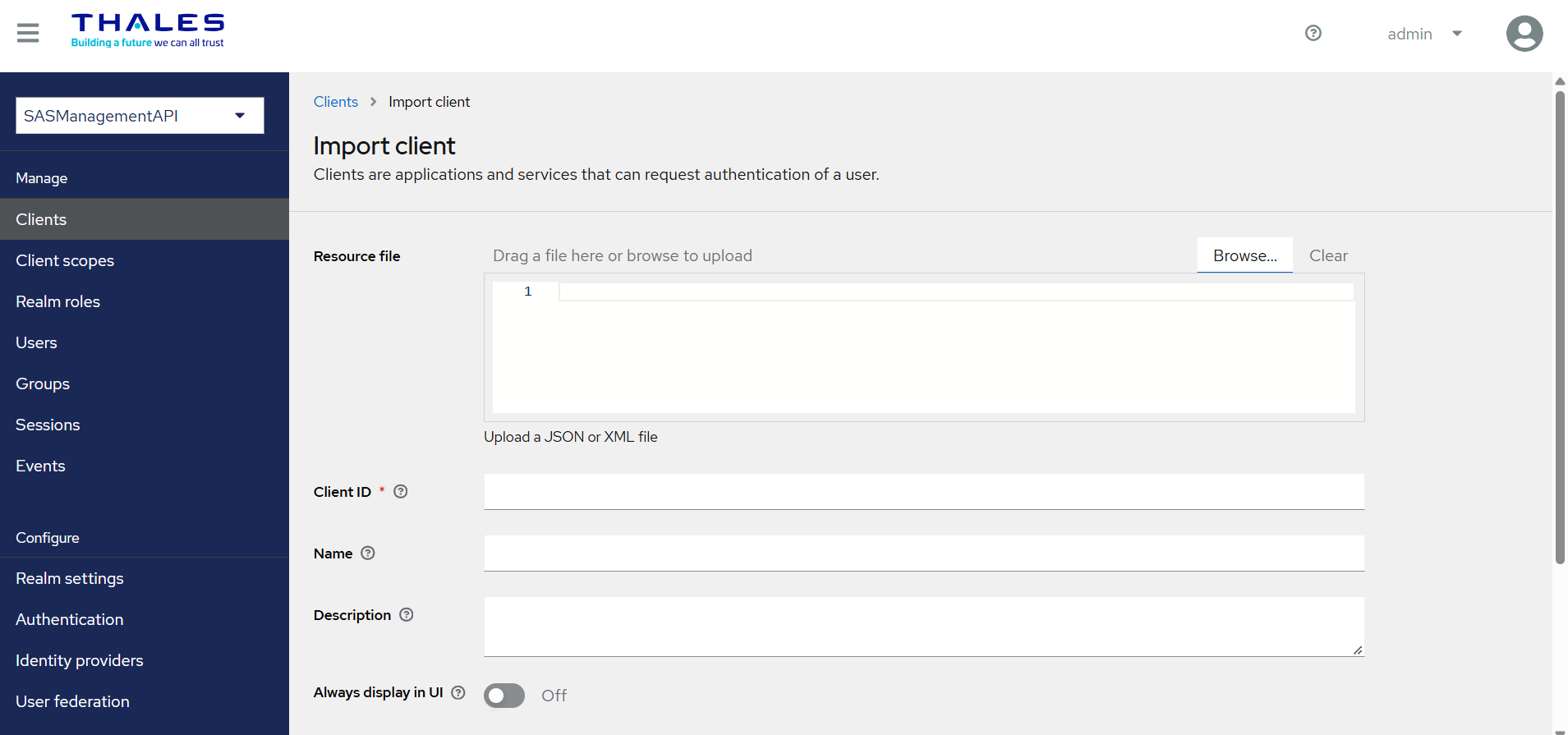
-
In the Client ID field, change the pre-filled
sas-mgmt-childand click Save. -
Skip to Step 4 — the mappers are already correct, no further editing is needed in the UI.
Option B — Import the template as-is, then edit in the Admin UI
-
In the SAE Admin UI (SASManagementAPI realm), click Clients in the left menu, then Import client (top right).
-
In the Import client dialog, choose Browse and select the unmodified
sas-mgmt-child.json. -
In the Client ID field, change the pre-filled
sas-mgmt-child. Click Save. -
Open the newly created client, click the Client scopes tab, and open the dedicated scope named (name you gave to Client ID-dedicated)
sas-mgmt-child-dedicated.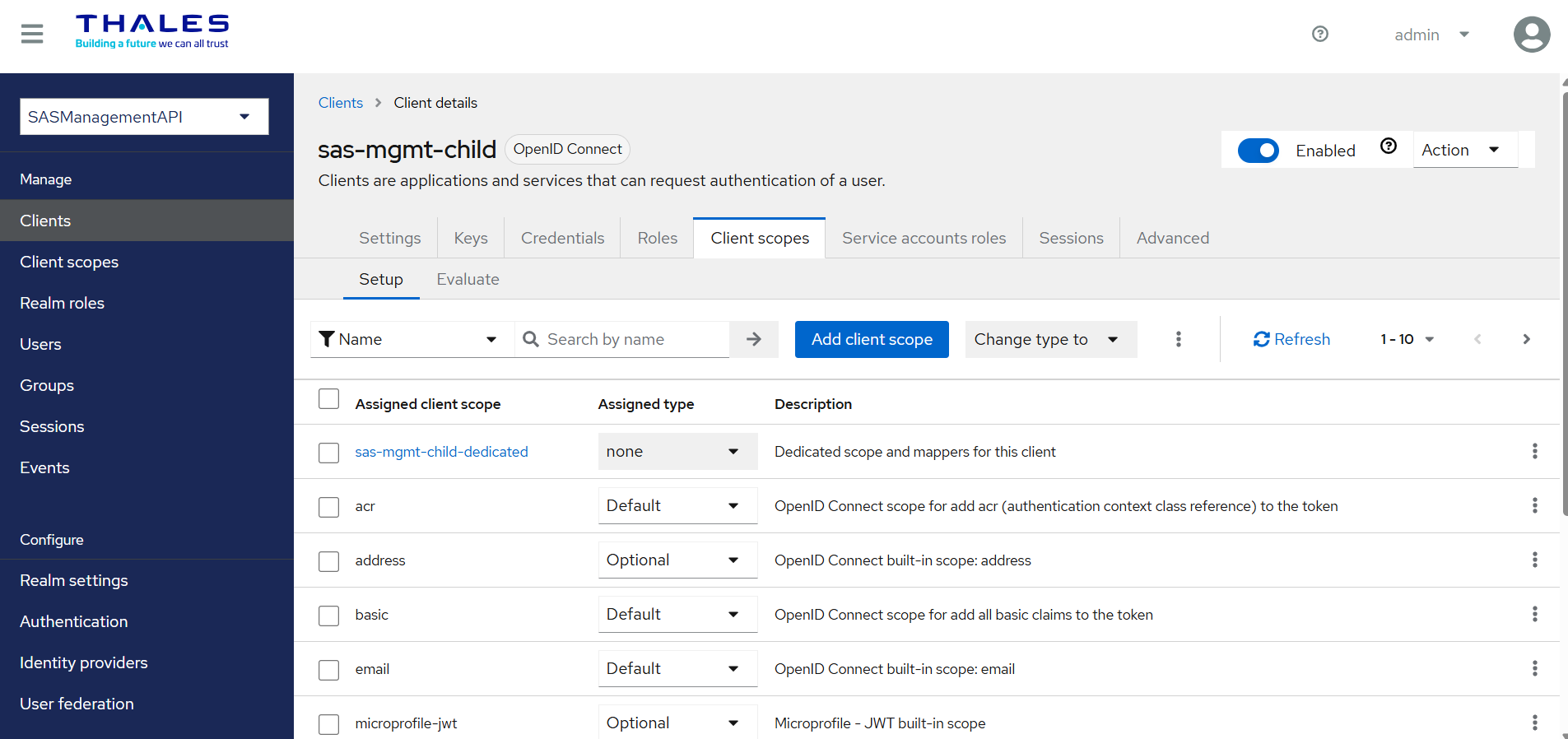
-
On the Mappers tab inside the dedicated scope. Edit the following three mappers in turn — click the mapper name, replace the Claim value, and click Save:
Mapper name Current value in template New value tenantId<Update me with tenant id>the child tenant code (for example TENANTB01)user_tenant_id<Update me with tenant id>the child tenant code (same value as above) uuid<Update me with OPERATOR_UUID>the appliance operator UUID (see Step 2 table)
Step 4 — Generate the client secret
-
Return to the client's main page then clik the newly created client
sas-mgmt-child. -
Open the Credentials tab.
-
Confirm Client Authenticator is set to
Client Id and Secret. -
Click Regenerate next to Client Secret. Copy the generated secret immediately — you will need it in Step 5.
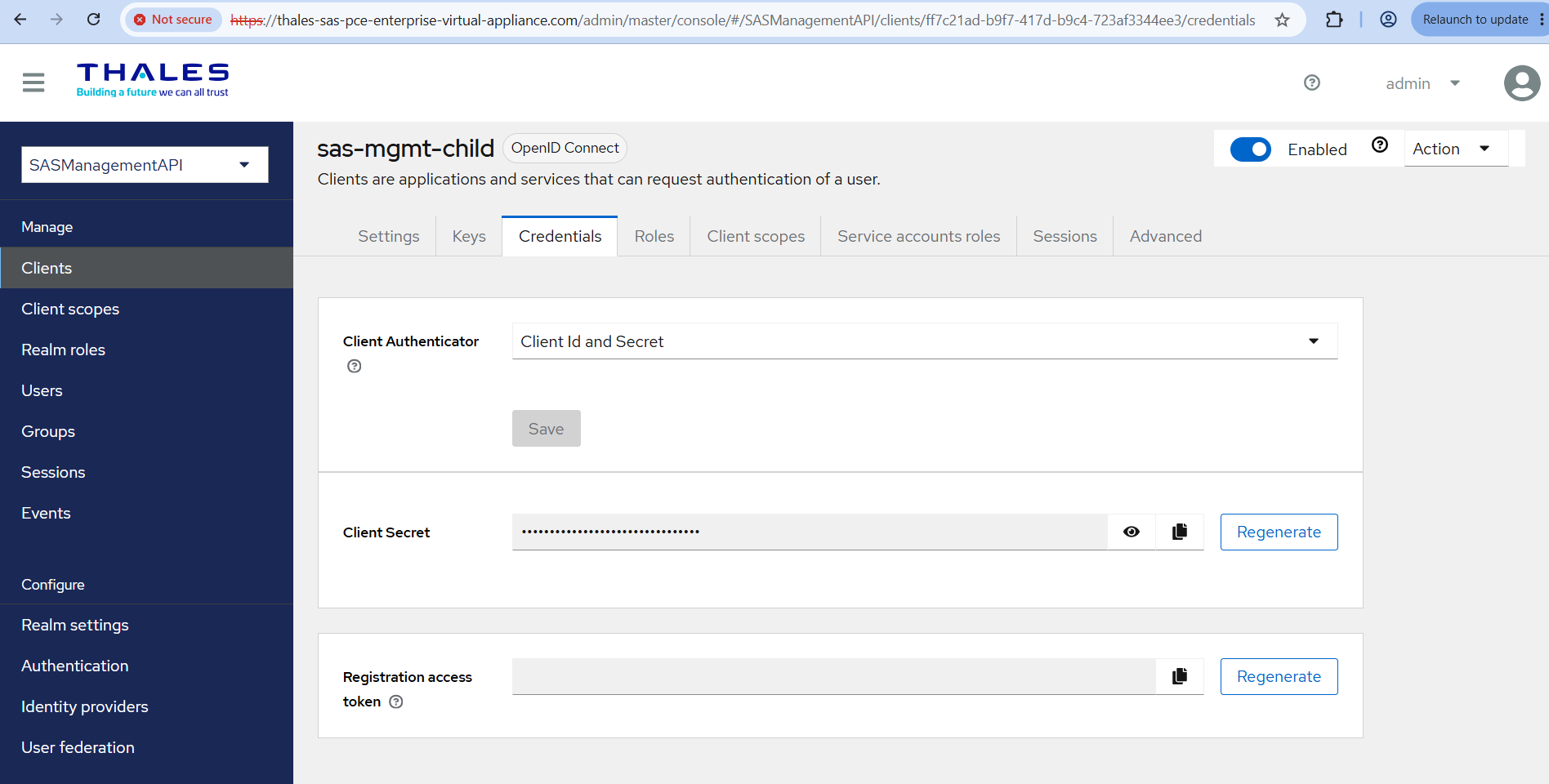
Store the client secret in your organization's secret manager. The Admin UI will not show the plaintext secret again after you navigate away.
Step 5 — Mint an access token and call the API for the child tenant
Replace <APPLIANCE_FQDN>, <CHILD_TENANT_CODE>, <CHILD_CLIENT_SECRET>, and <USER_ID> with your values.
# Mint access token (OAuth2 client-credentials)
TOKEN=$(curl -sk -X POST \
  "https://<APPLIANCE_FQDN>/realms/SASManagementAPI/protocol/openid-connect/token" \
  -d "grant_type=client_credentials" \
  -d "client_id=sas-mgmt-<CHILD_TENANT_CODE>" \
  -d "client_secret=<CHILD_CLIENT_SECRET>" | jq -r .access_token)

# Call SAS Management API for the child tenant
curl -sk -H "Authorization: Bearer ${TOKEN}" \
  "http://<APPLIANCE_FQDN>:5003/api/v1/tenants/<CHILD_TENANT_CODE>/users/<USER_ID>/authenticators"
To use the Swagger UI for the child tenant, open http://<APPLIANCE_FQDN>:5003/swagger/index.html, click Authorize, paste the bearer token obtained above, and invoke endpoints with the child tenant code in the path.

