Integration with CipherTrust Manager
This section outlines the steps to integrate Microsoft SSMS with CipherTrust Manager.
To integrate Microsoft SQL Server Management Studio with the CipherTrust Manager:
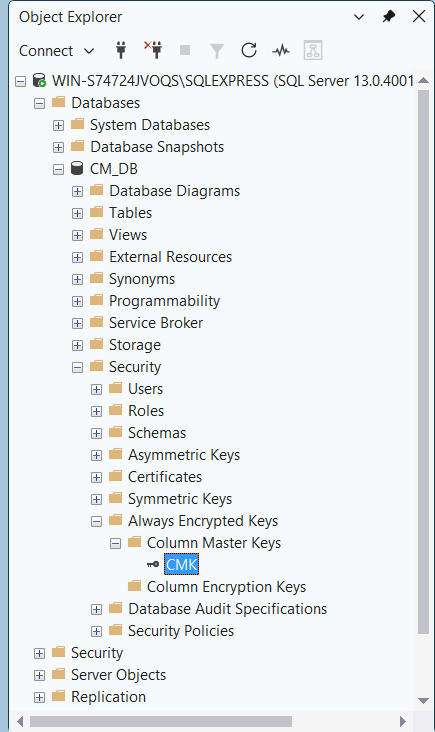
Create Always Encrypted Column Master Key
After installation of CADP Key Storage Provider, perform the following steps to configure Always Encrypted Column Master Key (CMK):
From the Start menu, select the Microsoft SQL Server Management Studio, and connect to the desired database.
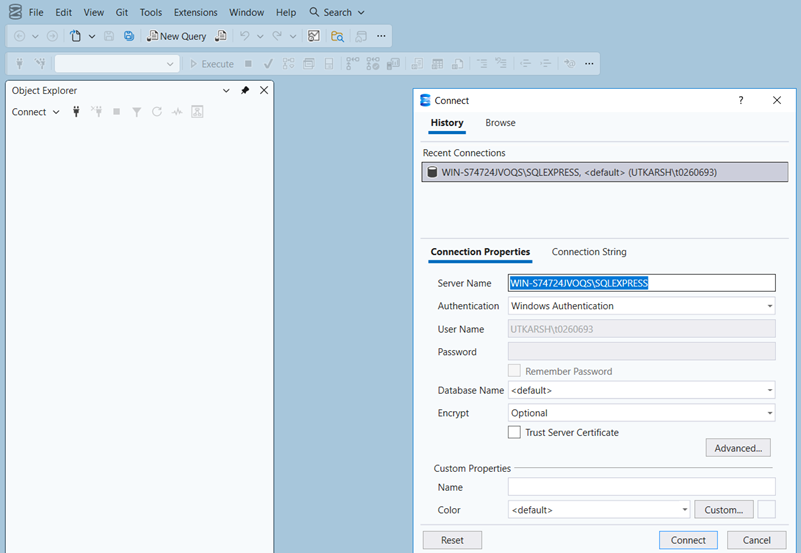
Once connected, select and expand Databases >
<your_database_name>> Security and select Always Encrypted Keys.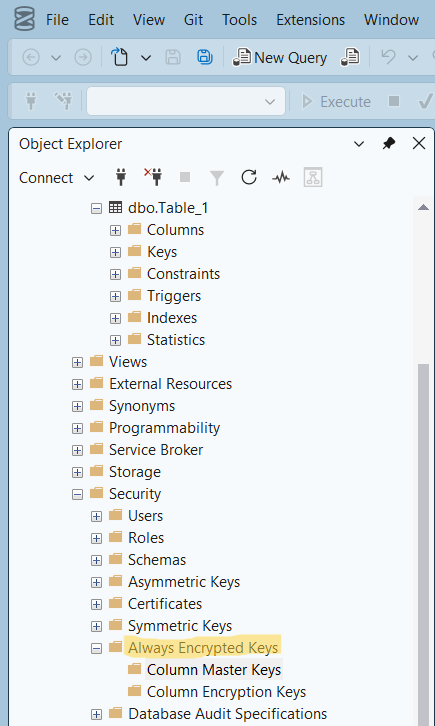
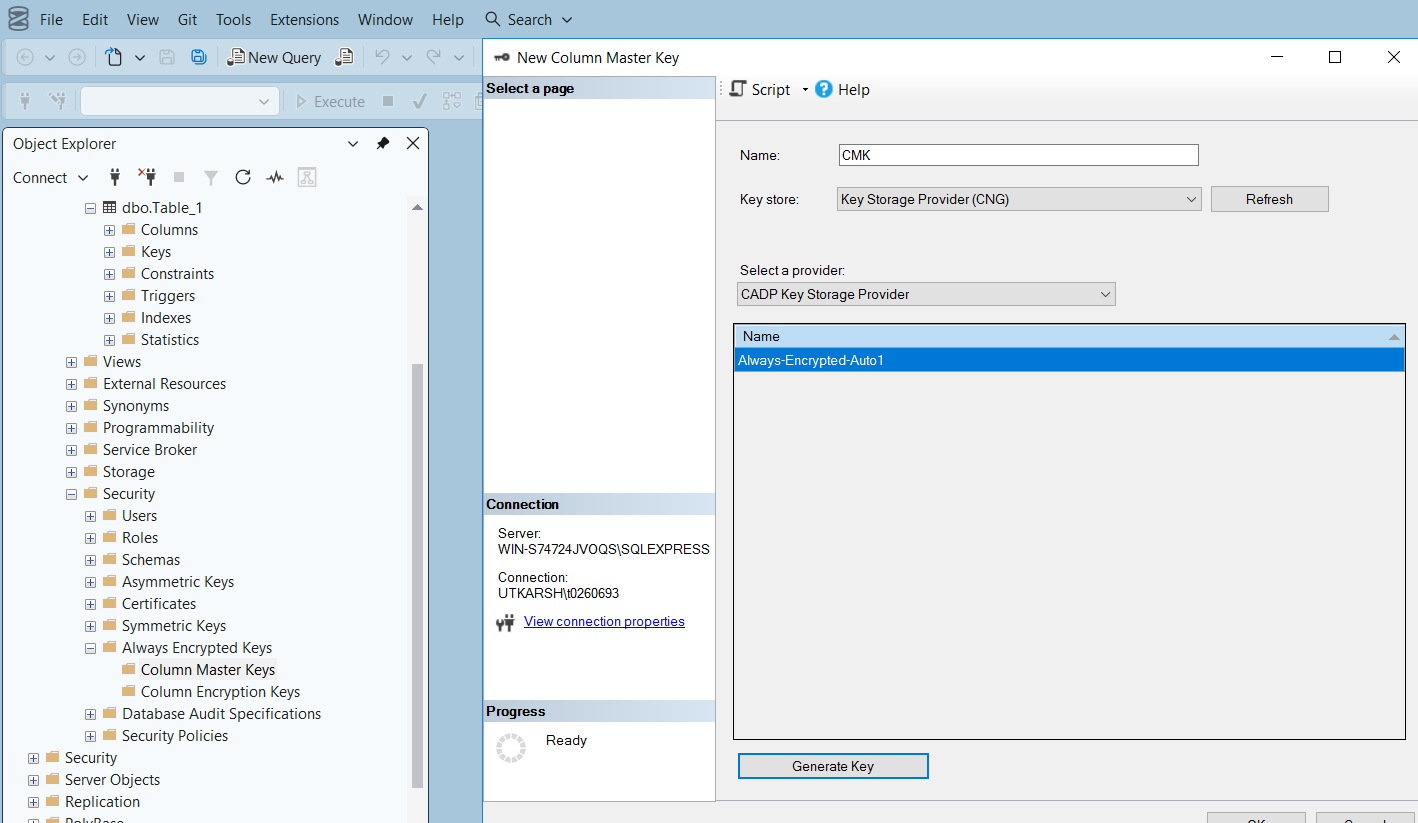
From the Key store drop-down list, select the Key Storage Provider (CNG).
From the Select a provider drop-down list, select CADP Key Storage Provider.
In the Name field, enter a name for the CMK. Click Generate Key to create a new CMK.
You can also view the generated CMK under Keys in the CipherTrust Manager.
Note
For CipherTrust Manager, irrespective of the name provided for the CMK in the Name field, internally CMK is always requesting with Always-Encrypted-Auto 1 Name.
Generate Column Encryption Key
You can enable Always Encrypted Keys and generate a Column Encryption Key (CEK). To generate CEK, select the database.
Click Security > Always Encrypted Keys > Column Encryption Keys, right-click and select New Column Encryption Key.
Specify a Name for the CEK.
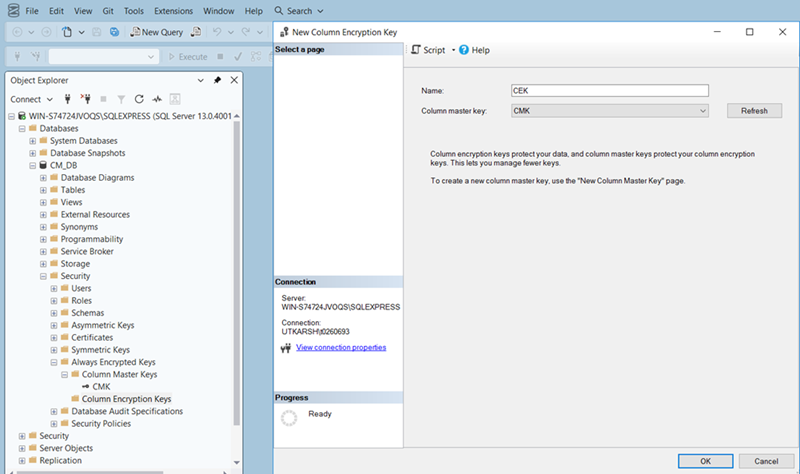
From the Column master key drop-down, select the CMK using which CEK will be encrypted and click OK.
This generates a CEK that is Encrypted and signed using the above specified CMK.
Encrypt Table Data
Create a table in the target database.
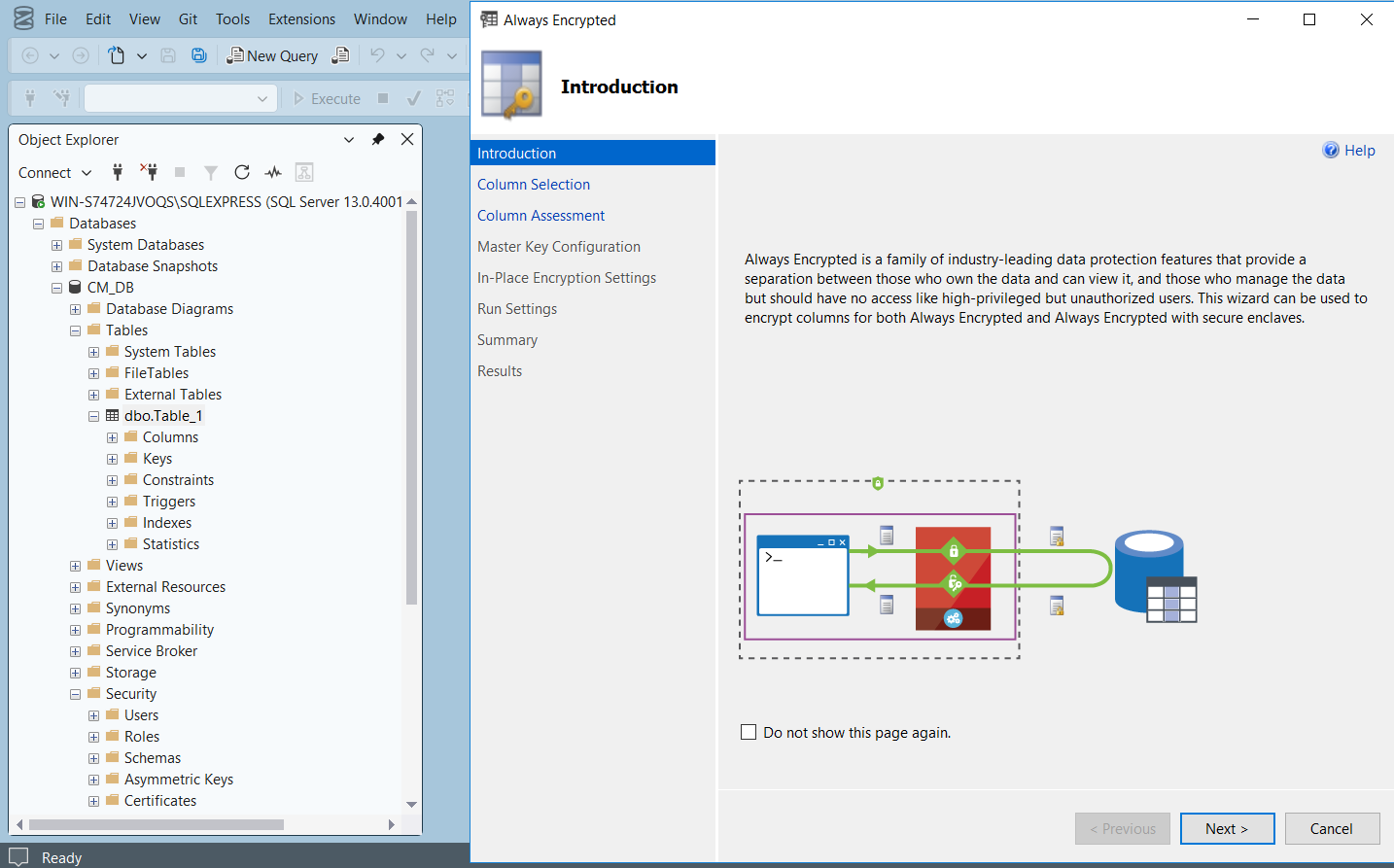
Right-click on the table and select Encrypt Columns option. Column Selection screen is displayed.
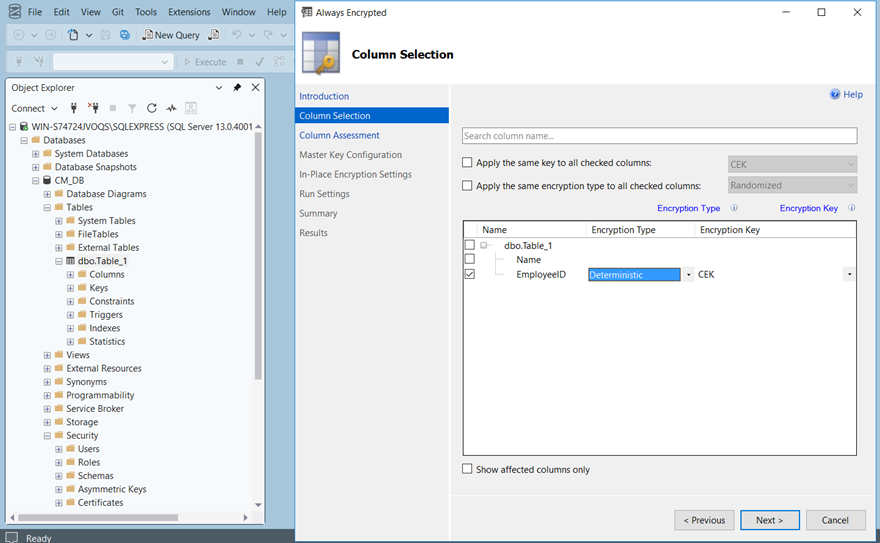
Select the column(s) on which you want to apply the encryption (Name, in this case) and select the Encryption Type as Deterministic or Randomized.
Select the column encryption key from the Encryption Key drop-down and click Next to proceed further.
Click Next to view the summary and click Finish to complete the encryption process.
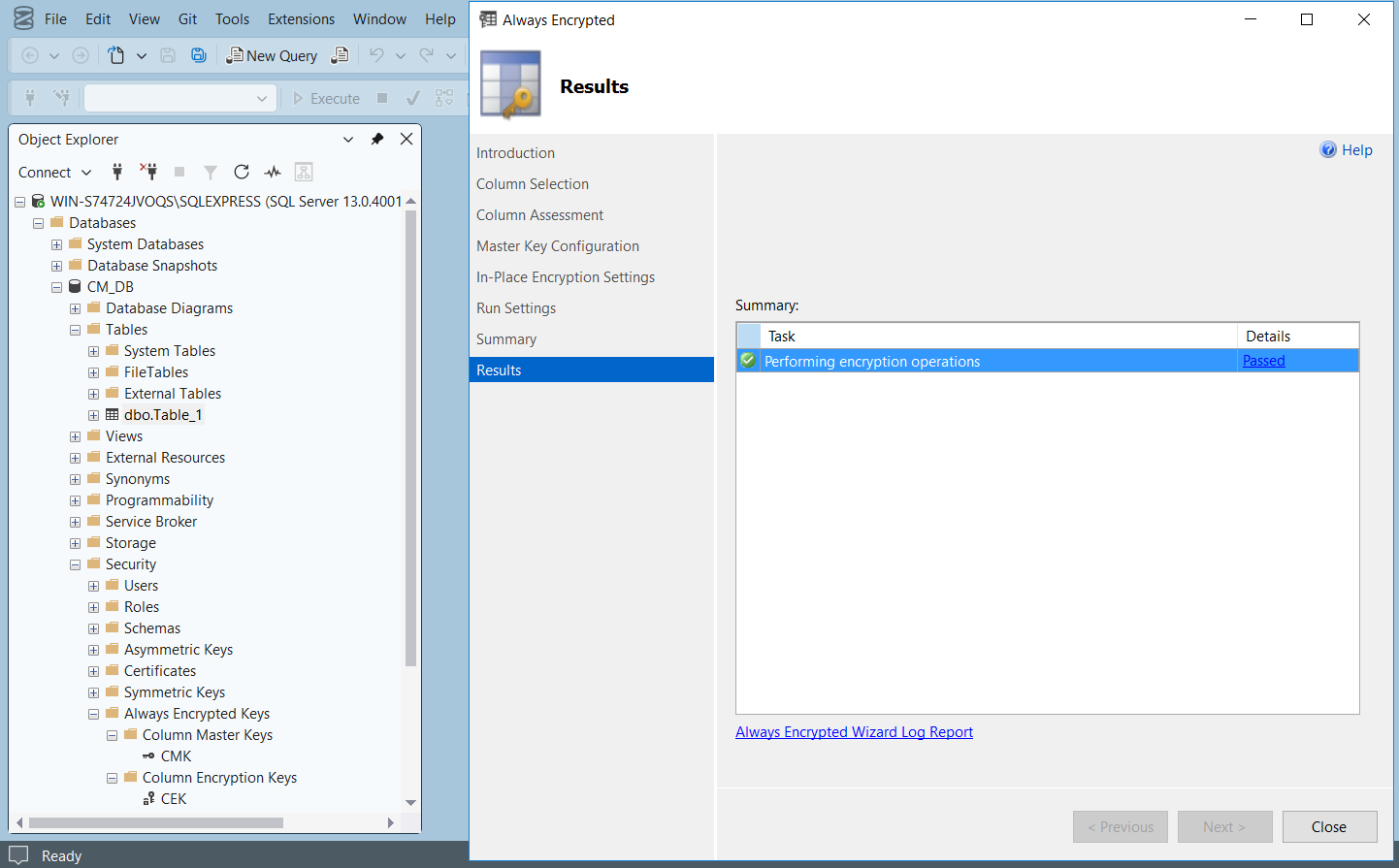
Following image shows whether the integration is successful.