



Using SafeNet ProtectApp MSSQL EKM Provider with Database Backup Encryption
This section provides information on encryption options for SQL Server database backups to manage the security of data which has been backed up to the file system. This data is backed up in the form of database backup files by using SQL Server backup encryption feature introduced from SQL Server 2014.
Configuring SafeNet ProtectApp MSSQL EKM Provider in SQL Server Database
To configure the provider in the SQL Server Database, you must enable EKM, load the DLL, and create credentials for a database user. All of these steps are described in the subsequent sections.
Enabling EKM in Your SQL Server Database
Execute the following commands on the SQL Server to enable EKM.
Only the users with the sysadmin or serveradmin privileges can execute the sp_configure command to change the server configuration. Whereas, the other users can run this command only to view the server configuration.
sp_configure 'show advanced options', 1;
RECONFIGURE;
sp_configure 'EKM provider enabled', 1;
RECONFIGURE;
Loading the DLL
• Before loading the DLL, you must configure the IngrianNAE.properties file. At a minimum, you must set the NAE_IP and Log_File parameters.
• Only the users with the sysadmin privileges can load the DLL.
To load the DLL, execute the following command:
CREATE CRYPTOGRAPHIC PROVIDER <provider_name>
FROM FILE = 'C:\Program Files\safenet\SQLEKM\safenetsqlekm.dll'
Alter the file location if you did not accept the default installation directory.
This will create a new cryptographic provider named
Creating Credentials with SQL Server
To create a SQL credential, execute the following command:
CREATE CREDENTIAL <credential_name> WITH IDENTITY='<cipherTrust_manager_user>',
SECRET='<cipherTrust_manager_user_password>'
FOR CRYPTOGRAPHIC PROVIDER <provider_name>
You must use a user/password combination that exists on the CipherTrust Manager.
The credential is visible under Security\Credentials in SQL Server Management Studio.
To map this new credential to an existing login on the SQL Server, execute the following command:
ALTER LOGIN <Sql_server_login> ADD CREDENTIAL <credential_name>
SQL Server Database Backup Encryption
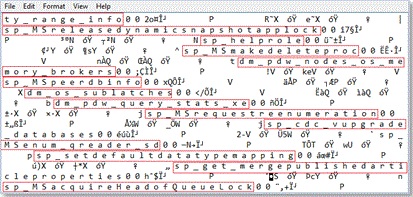
With the growing need to keep data secure, ensure to secure your database backup files, especially those on a server file system. With native SQL Server backups, the data in the backup file is stored in plain text on the file system. It is easily read using a text editor. Depending on the data types used in your tables, some data is much easier to view than other data. In the following images, the backup files are opened in Notepad. You can see which database backup file is encrypted:
SQL Server native backup without encryption:
SQL Server native backup with backup encryption:

From SQL Server 2014 onward, SQL Server can encrypt the data while creating a backup. By specifying the encryption algorithm and an encryptor (Asymmetric Key) when creating a backup, you can create an encrypted backup file.
Prerequisites
To encrypt the database backup during backup operation, specify an encryption algorithm and an encryptor to secure the encryption key. Supported encryption options include:
Encryption algorithm:
AES_128
AES_192
AES_256
Triple_DES_3Key
Encryptor: Asymmetric key
It is very important to backup the asymmetric key. DO NOT store the asymmetric key in the same location where the backup file it was used to encrypt is present. Asymmetric key is required to restore the backup, and without it, the backup file becomes unusable.
Changes in System Tables
There are changes to system tables that provide information about the key algorithm, encryption type, and encryption thumbprint used while the database backup is encrypted.
msdb.dbo.backupset
This table in msdb system database contains a row for each backup set. A backup set contains the backup for a single, successful backup operation. RESTORE, RESTORE FILELISTONLY, RESTORE HEADERONLY, and RESTORE VERIFYONLY statements operate on a single backup set within the media set on the specified backup device(s). key_algorithm, encryptor_thumprint, encryptor_type columns of this DMV provide information on whether the backup is encrypted, what encryptor type is used, and the encryptor thumbprint.
SELECT TOP 5
name,
key_algorithm,
encryptor_thumbprint,
encryptor_type,
is_password_protected
FROM msdb.dbo.backupset AS backupset with (NOLOCK)
WHERE type IN ('D', 'I') AND database_name = 'MyTestDb'
ORDER BY backupset.backup_start_date DESC
GO

msdb.dbo.backupmediaset
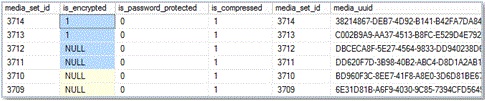
This table in msdb system database contains one row for each backup media set. The is_encrypted column indicates whether the backup is encrypted or not. 0 indicates not-encrypted and 1 means encrypted. Initially, this value is set to NULL which indicates non-encrypted backupmediaset.
SELECT TOP 2
name,
media_set_id,
is_encrypted,
is_password_protected,
is_compressed, *
FROM msdb.dbo.backupmediaset AS mediaset with (NOLOCK)
ORDER BY mediaset.media_set_id DESC
GO
Only asymmetric keys residing in an Extended Key Management (EKM) are supported.
Considerations
The following restrictions apply to the encryption options:
If you are using the asymmetric key to encrypt the backup data, only asymmetric keys residing in the EKM provider are supported.
Stronger encryption algorithm (depending on the encryption algorithm chosen) consumes more CPU resources than a weaker encryption algorithm.
SQL Server Express Edition and SQL Server Web Edition do not support encryption during backup. However, restoring from an encrypted backup to an instance of SQL Server Express Edition or SQL Server Web Edition is supported.
Previous versions of SQL Server cannot read encrypted backups.
Appending to an existing backup set option is not supported for encrypted backups. If an encrypted backup file using WITH INIT has been generated, it is not possible to append another encrypted backup to the same file. Doing so returns the following error:
Error: Msg 3095, Level 16, State 1, Line 11
The backup cannot be performed because 'ENCRYPTION' was requested after the media was formatted with an incompatible structure. To append to this media set, either omit 'ENCRYPTION' or create a new media set by using WITH FORMAT in your BACKUP statement. If you use WITH FORMAT on an existing media set, all its backup sets will be overwritten.
Msg 3013, Level 16, State 1, Line 11
BACKUP DATABASE is terminating abnormally.
Permissions
To encrypt a database backup during backup or to restore from an encrypted backup,
VIEW DEFINITONpermission is required on the asymmetric key that is used to encrypt the database backup.BACKUP DATABASEandBACKUP LOGpermissions default to members of the sysadmin fixed server role and thedb_owneranddb_backupoperatorfixed database roles.The account performing the restore should have
VIEW DEFINITIONpermissions on the asymmetric key used to encrypt during backup.
Database Backup Encryption Methods
The following sections list the detailed steps to encrypt the database backup during backup.
SQL Server Management Studio
In SQL Server Management Studio, on the Backup Options page or Backup Database wizard, you can select encryption, and specify the encryption algorithm and the asymmetric key to use for the encryption. Steps:
Create an asymmetric key in master database as below:
CREATE ASYMMETRIC KEY <key_name_in_sql_server>
FROM PROVIDER <provider_name>
WITH ALGORITHM = <algorithm_name>,
PROVIDER_KEY_NAME = '<key_name_in_cipherTrust_manager>',
CREATION_DISPOSITION=CREATE_NEW
Create a credential with the same Identity that was used by login_name.
Create a login and map it to the asymmetric key & credential created in step 1 & 2 above.
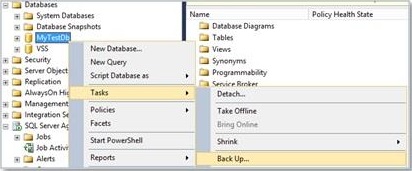
Connect to the appropriate instance of Microsoft SQL Server Database Engine. In Object Explorer, expand server name, and then the Databases.
Right click on the database, point to Tasks, and then click Back Up.
The Back Up Database dialog box appears:
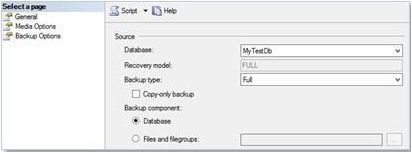
On the General and Media Options pages, enter the database backup options as you would do in a normal scenario while taking a database backup using Backup Database dialog box.
For database backup encryption, the options are listed in Backup Options page of Backup Database dialog box:
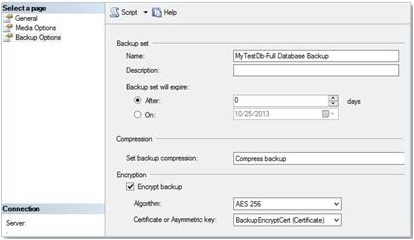
To create an encrypted backup, check Encrypt backup.
Select an encryption Algorithm from the drop down list.
Select the Asymmetric key (created in step 1) from the list of existing certificates or asymmetric keys.
• The encryption option is disabled if you select to append an existing backup set option on Media Options page of Backup Database wizard. Choose backup to a new media set, and erase all existing backup sets.
• Create the key before starting the process. Asymmetric key created before initiating the Backup Database wizard will be listed in the drop-down.Click OK to begin the encryption process.
On successful completion, you should be able to see the following message “The backup of database
database_namecompleted successfully.”
Restoring Database Backup Files
Following encrypted databases can be restored on a server:
TDE enabled backup
Database backup encrypted by Asymmetric key
Prerequisites
The EKM client must be installed on the target MSSQL hosted server. For more information on installing EKM client, refer to Installing, Uninstalling, and Upgrading MSSQL EKM Provider.
Configuring EKM on New MSSQL Server Instance
To configure EKM on the new MSSQL server instance:
Login to the Instance.
Validate the SQL Server version on the target instance. It should be same as the instance from which the backup is taken.
Select @@versionEnable the EKM on the MSSQL instance.
sp_configure 'show advanced options', 1;
RECONFIGURE;
sp_configure 'EKM provider enabled', 1;
RECONFIGURE;
Load the SafeNet ProtectApp MSSQL EKM Provider DLL.
CREATE CRYPTOGRAPHIC PROVIDER <provider_name>
FROM FILE ='C:\Program Files\safenet\SQLEKM\safenetsqlekm.dll'
For example:
CREATE CRYPTOGRAPHIC PROVIDER <provider_name>
FROM FILE ='C:\Program Files\safenet\SQLEKM\safenetsqlekm.dll'
Create the SQL Server credential.
CREATE CREDENTIAL <credential_name> WITH IDENTITY='<cipherTrust_manager_user>',
SECRET='<cipherTrust_manager_user_password>'
FOR CRYPTOGRAPHIC PROVIDER <provider_name>
Map the credential to SQL Server credential.
ALTER LOGIN [<domain-Name\<login_name>] ADD CREDENTIAL <credential_name>Create an asymmetric key with same name which was used to enable the TDE or backup the database on the host machine.
CREATE ASYMMETRIC KEY <key_name_in_sql_server>
FROM PROVIDER <provider_name>
WITH PROVIDER_KEY_NAME = '<key_name_in_cipherTrust_manager>',
CREATION_DISPOSITION=OPEN_EXISTING;
Steps 8 and 9 (creation of new credential and login) are only required when TDE enabled database is restored on the target server.
Create a credential for the Database Engine.
CREATE CREDENTIAL <credential_name>
WITH IDENTITY = '<cipherTrust_manager_user>',
SECRET = '<cipherTrust_manager_user_password>'
FOR CRYPTOGRAPHIC PROVIDER <provider_name>
Create a login for TDE and map it to credential created in the previous step.
CREATE LOGIN <login_name>
FROM ASYMMETRIC KEY <asymmetric_key_name>;
ALTER LOGIN <login_name>
ADD CREDENTIAL <credential_name>
Restoring the Database File
The following section lists the detailed steps to restore the encrypted database backup:
Only the databases with full recovery option should be restored.
SQL Server Management Studio
Copy the backup file from the source server to the destination server.
After connecting to the appropriate instance of the Microsoft SQL Server Database Engine, in Object Explorer, click the server name to expand the server tree.
Expand the Databases. Depending on the database, either select a user database or expand System Databases, and then select a system database.
Right-click the database, select Tasks > Restore, and then click Files and Filegroups, which opens the Restore Files and Filegroups dialog box.
On the General page, enter the name of new or existing database in To database for restore operation.
On the General > Source section, select the Device button and specify the backup file location that needs to be restored. Further, Select the following option:
Database
Select the database to restore from the drop-down list. The list contains only databases that have been backed up according to the msdb backup history.
If the backup is taken from a different server, the destination server will not have the backup history information for the specified database. In this case, select Device to manually specify the file or device to restore.

