



Attribute consent
Attribute consent allows users to consent to the use of their personal data (referred to as attributes) for specific processing purposes, for example, receiving marketing emails or personalization. Unlike document consent, attribute consent is always optional and represents a user preference rather than a requirement for accessing a service.
Attribute consent is organized in a three-level hierarchy:
Purpose definition
└── Purpose version (one or more)
    └── Purpose localization (one per language)
Purpose management
A processing purpose definition (for example, Email Marketing) is the top-level object that specifies how a user's personal data will be used. The definition includes a legal basis under GDPR Article 6, a default language, and an optional description.
Purpose list
When you open the Attribute Consent section of the Consent Management console, a paginated table displays all the purpose definitions for your tenant.

The table includes the following columns:
| Column | Description |
|---|---|
| Purpose Definition | The purpose name, such as Email Marketing. Select the name to open the purpose details page |
| Identifier | The system-generated identifier in the format PD-{timestamp}-{suffix} (for example, PD-1769082598654-EMKT001) |
| Legal Basis | The GDPR Art. 6 basis under which personal data is processed |
| Default Locale | The default language for this purpose |
| Last Updated | The date and time when the purpose was last modified |
You can sort the table by any column and use the pagination controls to navigate between pages.
Purpose list actions
Each purpose row includes an actions menu (⋮). Select the menu to access the following actions:
| Action | Description |
|---|---|
| Edit | Opens the edit form for the purpose definition. You can update the name, legal basis, default locale, and description |
| Manage Versions | Navigates to the purpose details page and scrolls to the Versions section, where you can create and manage the purpose versions |
| Delete | Opens a confirmation dialog to permanently delete the purpose definition. Deletion is a hard-delete: the purpose and all its versions and localizations are permanently removed. Deletion is only allowed when the purpose has no versions or all versions are in DRAFT status |
The actions menu is only visible to users with the consent_write role.
Legal basis values
The Legal Basis field identifies the lawful basis under GDPR Art. 6 for processing personal data:
| Value | Description |
|---|---|
CONSENT |
The user has given explicit consent to the processing of their personal data for the specified purpose |
CONTRACT |
Processing is necessary for the performance of a contract with the user, or to take steps at the user's request before entering into a contract |
LEGAL_OBLIGATION |
Processing is necessary to comply with a legal obligation |
VITAL_INTERESTS |
Processing is necessary to protect the vital interests of the user or another person |
PUBLIC_TASK |
Processing is necessary for the performance of a task carried out in the public interest or in the exercise of official authority |
LEGITIMATE_INTERESTS |
Processing is necessary for the legitimate interests of the organization, except where overridden by the interests or fundamental rights of the user |
Create a purpose definition
-
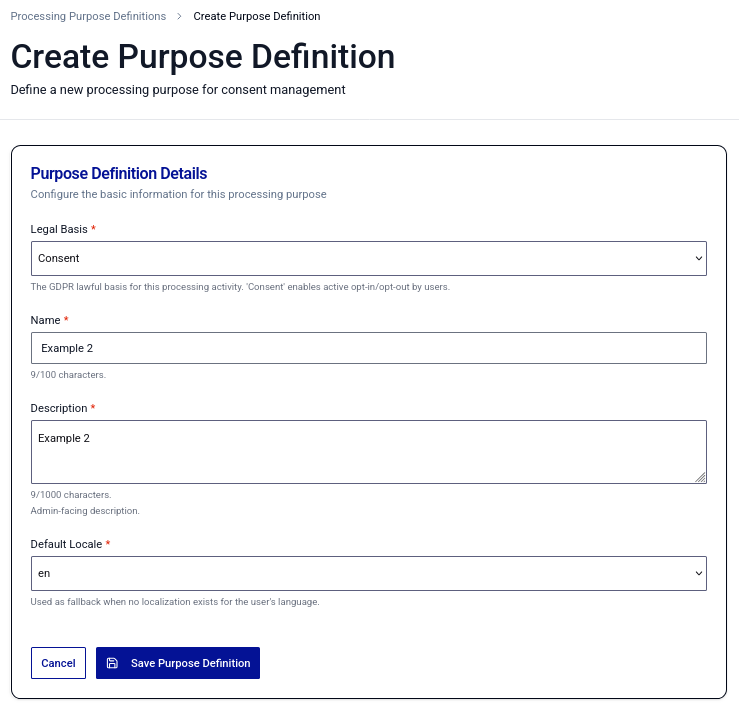
In the purpose list, select Add New Purpose Definition.
-
Enter the following information:
-
Name: Enter a unique purpose name for the tenant (1–100 characters).
-
Legal Basis: Select the applicable GDPR Art. 6 legal basis from the dropdown.
-
Default Locale: Select the default language from the tenant's configured locales.
-
Description: Enter a description of the purpose (1–1,000 characters). This field is required.
-
-
Select Save.
The new purpose appears in the list with no versions.
View purpose details
To open the purpose details page, select a purpose name in the list.
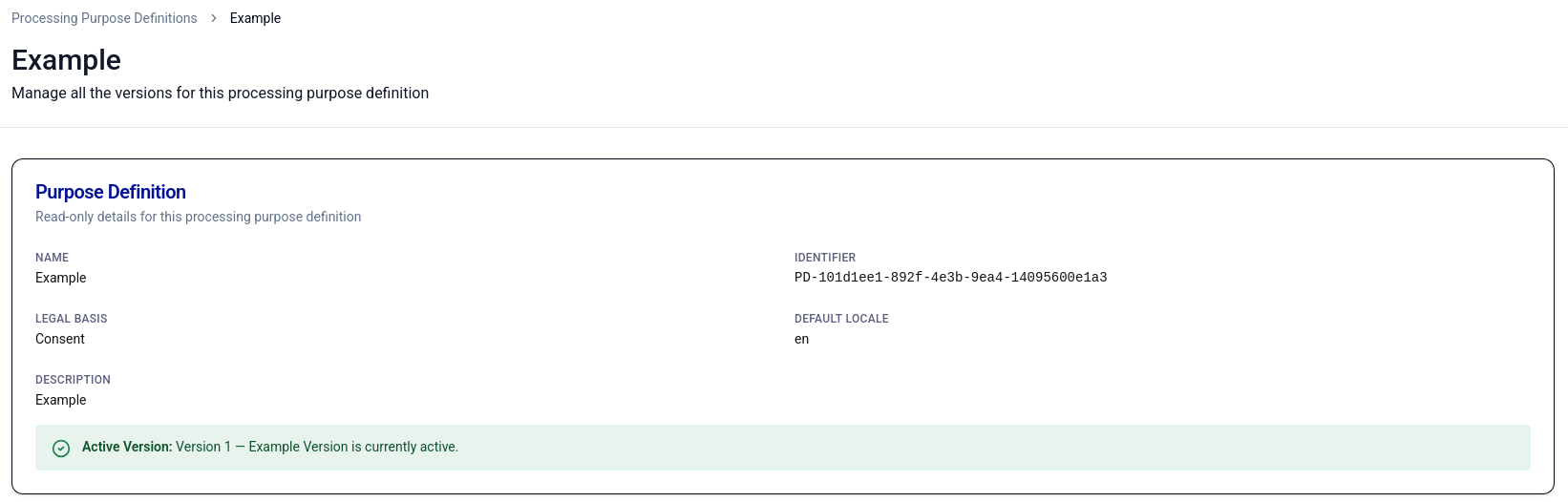
The details page shows:
- The purpose definition properties (name, identifier, legal basis, default locale, description).
- An active version callout (if a version is currently ACTIVE).
- A table of all versions with their status, version number, version name, and lifecycle dates.
Edit a purpose definition
All fields are editable: Name, Legal Basis, Default Locale, and Description.
On the purpose details page, select Edit.
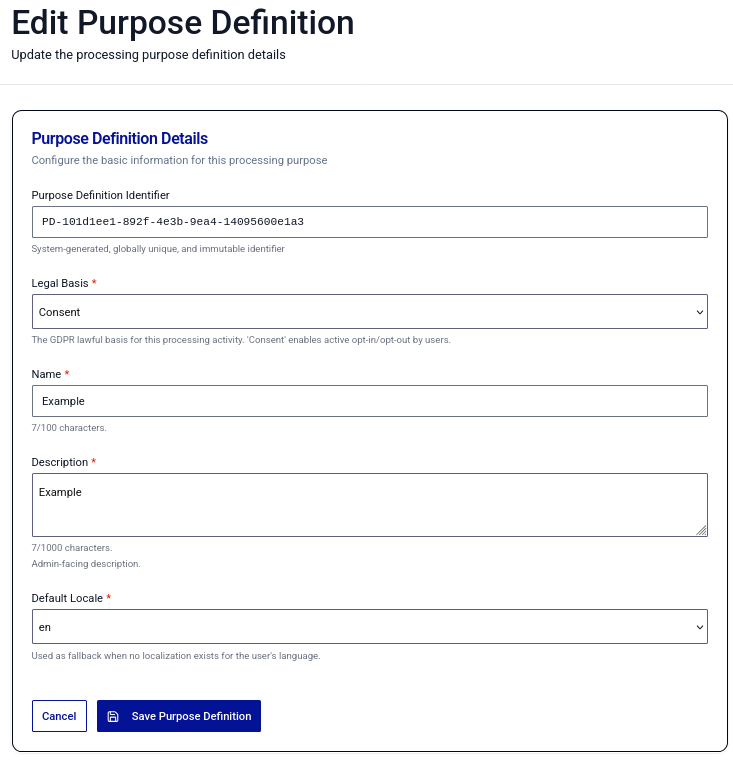
If you navigate away with unsaved changes, an unsaved changes dialog warns you that your changes will be lost.
Delete a purpose definition
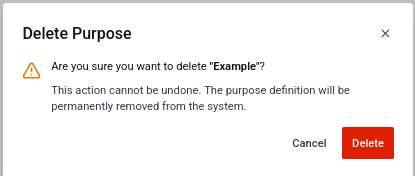
Deleting a purpose definition is a hard-delete: the definition and all its versions and localizations are permanently removed.
Deletion is allowed only if the purpose has no versions or all versions are in DRAFT status.
On the purpose list, select Delete from the actions menu (⋮).
Version management
On the purpose details page, the Versions section lists all versions of the purpose.

For each version, the table includes:
| Column | Description |
|---|---|
| Version number | The sequential version number (blank for DRAFT versions that are not yet scheduled) |
| Version name | Human-readable label |
| Status | The computed lifecycle status: DRAFT, SCHEDULED, ACTIVE, or ARCHIVED |
| Effective date | When the version became or will become active |
| Archive date | When the version is archived (if set) |
| Last updated | Date of the last modification |
When a new version becomes active, the previous active version is immediately archived.
Version actions
Each version row includes an actions menu (⋮). Select the menu to access the following actions:
| Action | Description |
|---|---|
| Edit | Opens the version details page where you can update the version name, identity schema source, data scope, preferences, and localizations |
| Clone | Opens a dialog to create a new DRAFT version as a copy of this version, with all localizations copied and lifecycle dates cleared |
| Delete | Deletes the version. This action is available only for DRAFT versions. SCHEDULED versions must be unscheduled before they can be deleted. ACTIVE and ARCHIVED versions cannot be deleted |
Create a version
-
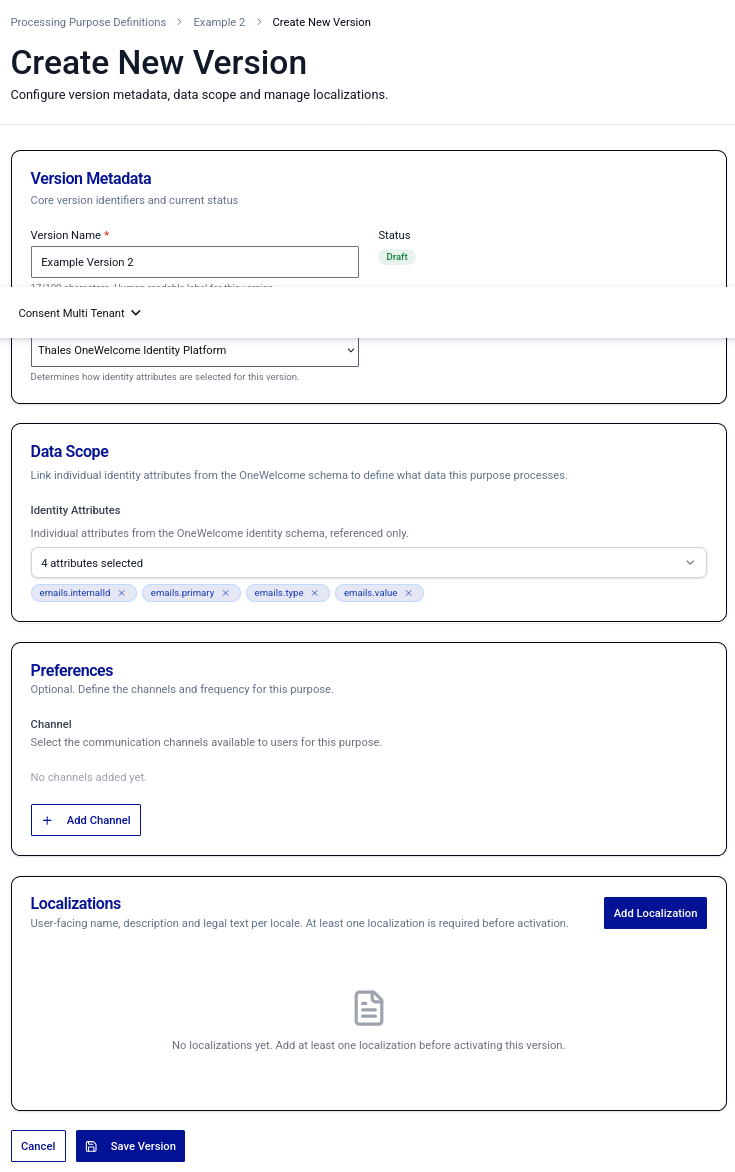
On the purpose details page, select Add Version.
-
Enter a Version Name. The name must be unique within the purpose and contain 1–100 characters.
-
(Optional) Select the Identity Schema Source:
- OIP: Identity attributes come from the OneWelcome Identity Platform schema.
- External: Identity attributes come from an external identity schema.
-
(Optional) Configure the Data Scope (linked identity attributes) and Preferences (communication channels).
-
(Optional) Add Localizations.
-
Select Save.
The version is created in DRAFT status with no version number.
Version details page
The version details page is where you configure all aspects of a purpose version. The page is organized into the following sections:
Version Metadata
Displays the version name, identity schema source, status badge, and lifecycle dates. You can update the version name and identity schema source here.
Data Scope
The Data Scope section defines the personal data attributes linked to the processing purpose.
- Select identity attributes from the available list (grouped by category, for example
personal.firstName,personal.email). - You can link up to 50 attributes per version.
- Attributes come from either the OIP identity schema or an external schema, depending on the Identity Schema Source selected for the version.
Preferences
The Preferences section defines the communication channels and contact frequencies for the purpose.
You can add up to 10 channels per version. For each channel:
-
Channel type: Select from the available types:
Channel Description EMAILEmail communication SMSSMS/text message communication PUSH_NOTIFICATIONMobile push notifications PHONE_CALLPhone call communication POSTAL_MAILPhysical postal mail IN_APP_MESSAGEIn-app messaging -
Attributes: (Optional) Link identity attributes to this channel (for example, link
personal.emailto theEMAILchannel). -
Frequencies: (Optional) Select one or more permitted contact frequencies:
Frequency Description DAILYUp to once per day WEEKLYUp to once per week BIWEEKLYUp to once every two weeks MONTHLYUp to once per month QUARTERLYUp to once per quarter SEMI_ANNUALLYUp to twice per year ANNUALLYUp to once per year
Localizations
The Localizations section lists all language-specific content for the version. You must add at least one localization (in the default locale) before the version can be scheduled. See Localization management for details.
Schedule or activate a version
-
Open the version details page.
-
Set the Effective Date:
- Set a future date to schedule the version. The status changes to SCHEDULED and the system assigns a version number.
- Set the current date/time (within a 60-minute tolerance) to activate the version immediately. The status changes to ACTIVE.
-
Select Save.
When a version becomes ACTIVE, the previously ACTIVE version is automatically archived.
Prerequisites for scheduling:
- The version must have at least one localization.
- The version must have a localization for the purpose's default locale.
Unschedule a version (revert to DRAFT)
To revert a SCHEDULED version to DRAFT:
-
On the version details page, clear the Effective Date field.
-
Select Save.
The version returns to DRAFT status and its version number is removed.
Clone a version
To create a new version based on an existing version:
-
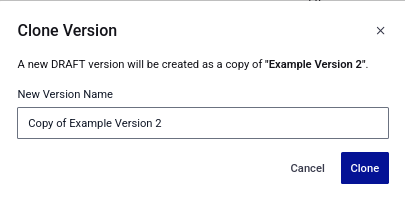
In the version actions menu (⋮), select Clone.
-
(Optional) Enter a new version name. The default name is
{original name} (Copy). -
Select Clone.
The clone is created with DRAFT status, with all localizations copied and lifecycle dates cleared. After cloning, you are redirected to the new version's detail page.
Delete a version
Only DRAFT versions can be deleted. In the version actions menu (⋮), select Delete. SCHEDULED versions must be unscheduled first. ACTIVE and ARCHIVED versions cannot be deleted.
Localization management
Each purpose version can have localizations for multiple languages. A localization contains the language-specific title, legal text, and optional description that is shown to users when they are asked to consent to the purpose.
Localization list
On the version details page, the Localizations section lists all localizations for the version. Each row includes:
| Column | Description |
|---|---|
| Language | The locale code (for example, en_US) |
| Title | The localized purpose title |
| Lineage | Whether the localization is NEW_CONTENT or DERIVED |
Add a localization
You can add localizations when creating a version, or at any time while the version is in the DRAFT, SCHEDULED, or ACTIVE status.
-
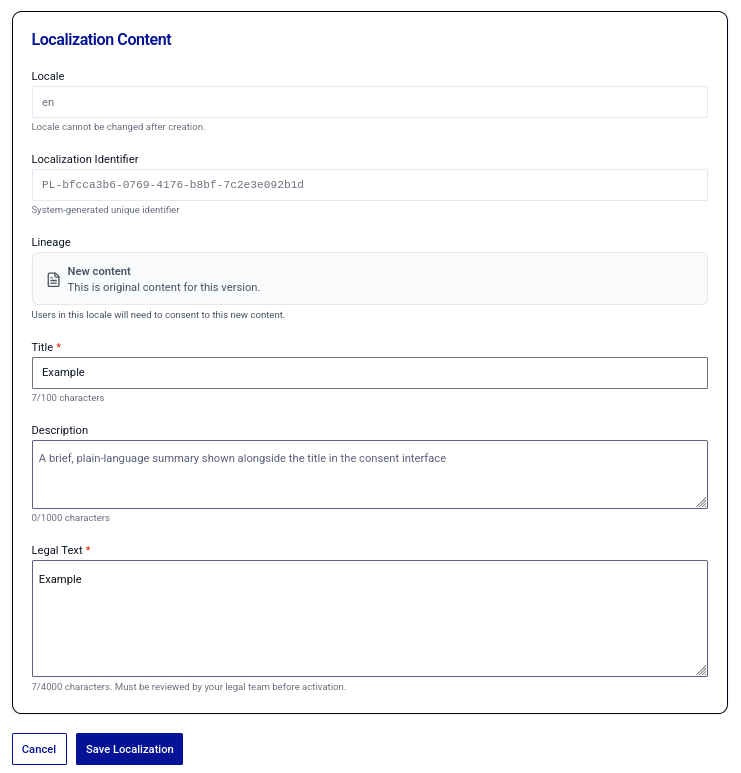
On the version details page, select Add Localization.
-
Select the Language from the list.
The list includes only locales configured for your tenant. A version can have at most one localization per language.
-
Enter the Title for the purpose in this language (1–100 characters).
-
Enter the Legal Text, which is the full legal text of the purpose displayed to users.
-
(Optional) Enter a Description (1–1,000 characters).
-
Select the Lineage:
-
New content: The legal text is original or has changed. This creates a new consent requirement, and users must actively consent to this localization.
-
Derived: The legal text is legally equivalent to another existing localization. Select the Source localization from an ACTIVE or ARCHIVED version of the same purpose. The legal text is inherited from the source. Users who consented to the source localization are automatically considered compliant.
-
-
Select Save.
Edit a localization
On the localization detail page, you can update the Title, Legal Text, and Description. The Language and Lineage fields cannot be changed after creation.
For DERIVED localizations, you can select View Source Details to open a dialog showing the source localization's version name, locale, and title.
Localizations on ARCHIVED versions are read-only and cannot be edited.
Legal vs non-legal changes on ACTIVE versions
When you edit a localization on an ACTIVE version, a dialog prompts you to classify the change:
-
Non-legal change: The change does not alter the legal meaning of the purpose (for example, fixing a typo or updating a description). The changes are saved normally, and existing users are not required to provide consent again.
-
Legal change: The change alters the legal text in a way that requires users to re-consent (for example, changing the scope of data use or the processing basis). When you select this option, you are redirected to the Create Version page to create a new version with the updated content. The existing ACTIVE version remains unchanged.
Note
This dialog is a UX safety guard. The backend does not enforce the change classification. You are responsible to apply the correct change type. If you make legal content changes without creating a new version, affected users are not prompted to provide consent again.
Delete a localization
Select Delete for a localization. Deletion is blocked if:
- It is the last remaining localization for the version.
- It is the localization for the purpose's default locale.

