



Document consent
Consent Management v2 provides a web-based interface for managing consent documents, versions, and localizations, and querying consent events. It is integrated into the OneWelcome Identity Platform console.
Document management
On the OneWelcome Identity Platform console, the Consent Management section includes the Document Consent page. The Document Consent page lists all the documents for your tenant in a paginated table.
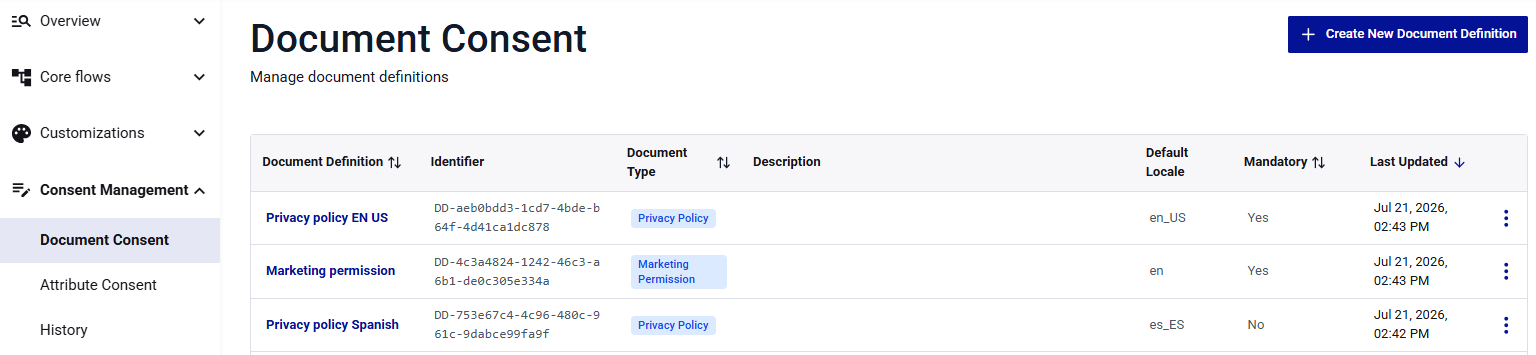
The table includes the following columns:
| Column | Description |
|---|---|
| Document Definition | The document name (for example, Privacy Policy) |
| Identifier | A unique identifier for the document |
| Document Type | The document type (for example, PRIVACY_POLICY, TERMS_OF_SERVICE) |
| Description | An optional description of the document |
| Default Locale | The locale to use when there is no document for the user's language. Format: xx_XX or xx-XX |
| Mandatory | Indicates whether user consent is required to access the service |
| Last Updated | The date and time when the document was last modified |
You can sort the table by any column and use the pagination controls to navigate between pages.
Document actions
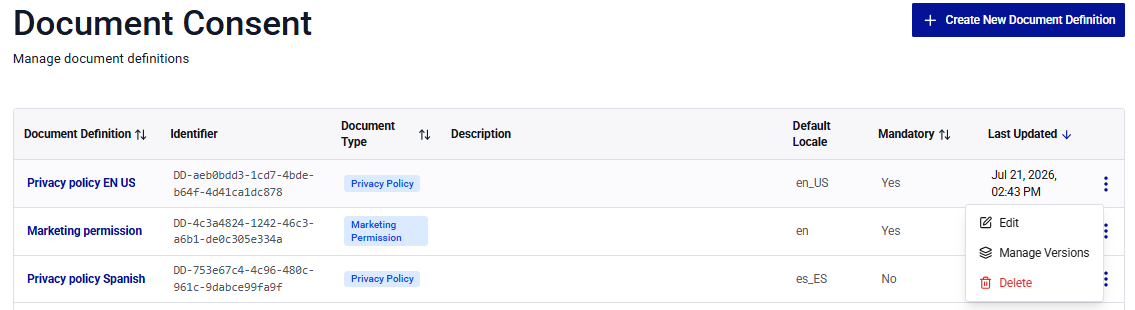
In the Document Consent table, each document row has a menu of possible actions:
| Action | Description |
|---|---|
| Edit | Edit the document definition. You can update the name, description, default language, and mandatory settings |
| Manage Versions | Create and manage document versions |
| Delete | Permanently deletes the document definition. You can delete a document definition only if it has no versions or if all its versions have DRAFT status |
Document details
A consent document (for example, Privacy Policy) is the anchor for all versions and consent records.
The document details include the document type, whether it is mandatory, and the default language. The document type classifies the document. The following standard types are available:
PRIVACY_POLICY: Privacy policy documentTERMS_OF_SERVICE: Terms of service or terms and conditionsCOOKIE_POLICY: Cookie usage policyMARKETING_PERMISSION: Consent to receive marketing communicationsCUSTOM: A custom type that you define for other document types
Create a document
-
On the Document Consent page, select Create New Document Definition.
-
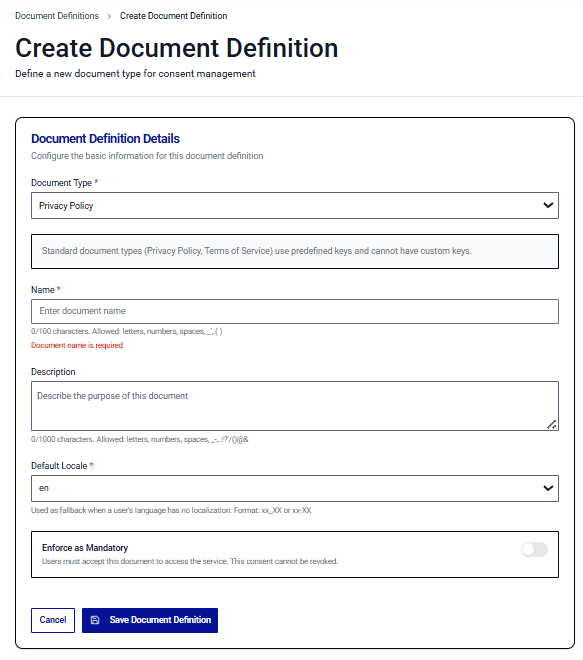
On the Create Document Definition page, enter the following information:
-
Document type: Select the type: Privacy Policy, Terms of Service, Cookie Policy, Marketing Permission, or Custom.
- Custom Key: When you select the Custom document type, enter a key in the
UPPER_SNAKE_CASEformat (for example,EMPLOYEE_HANDBOOK).
- Custom Key: When you select the Custom document type, enter a key in the
-
Name: The document name must be unique (1–100 characters).
-
Description: (Optional) The description can include up to 1,000 characters.
-
Default Locale: Select the default locale from the tenant's configured languages.
-
Enforce as Mandatory: Enable this option if users must consent to the document before they can access the service.
-
-
Select Save Document Definition.
The Document Consent list now includes the new document.
View document details
To open the document details page, select a document name in the list.
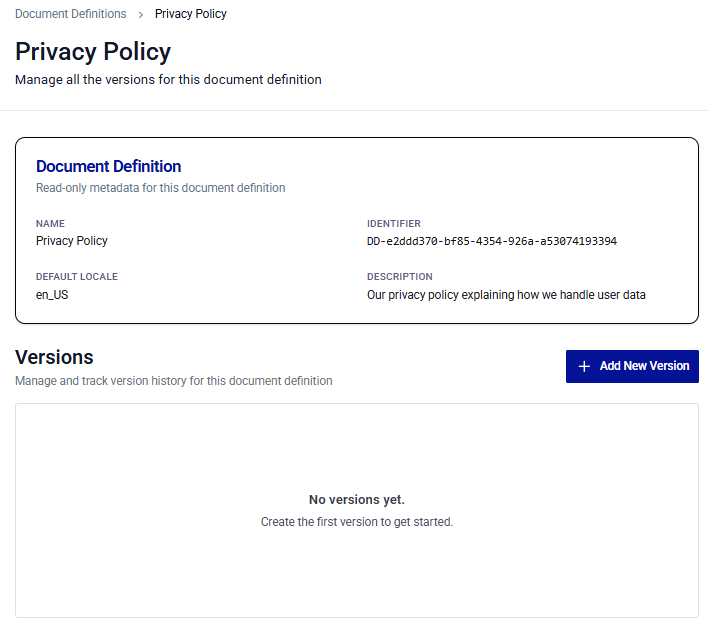
The details page shows the document definition properties (name, type, mandatory flag, default language). It also includes a section for document versions, with their status, version number, version name, and lifecycle dates.
Edit a document
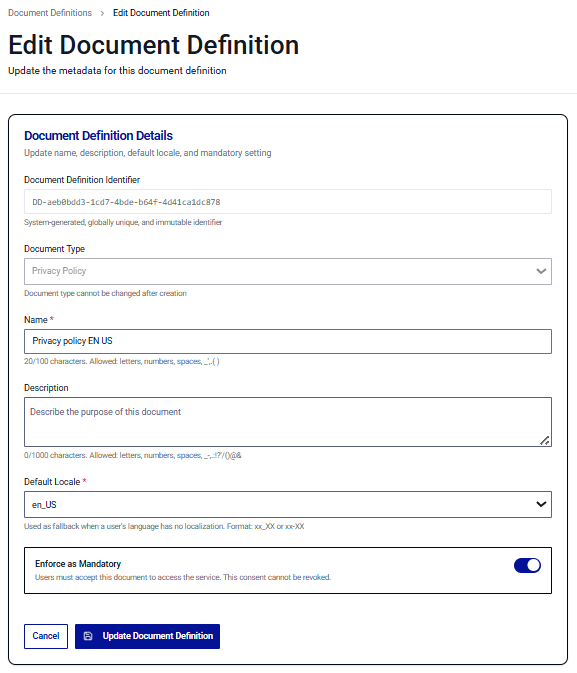
You can modify the Name, Description, Default Locale, and Enforce as Mandatory settings. The Document type and Custom type key are not editable after you create and save a document.
Changing the default locale is allowed only if all ACTIVE and SCHEDULED versions already have a localization in the new language.
-
In the Document Consent table, select the menu for the document that you want to edit, and select Edit.
-
On the Edit Document Definition page, update the document details.
Delete a document
Deleting is allowed only if the document has no versions or if all versions have the DRAFT status.
- In the Document Consent table, select the menu for the document that you want to edit, and select Delete.
Version management
On the document details page, the versions table lists all versions of the document.
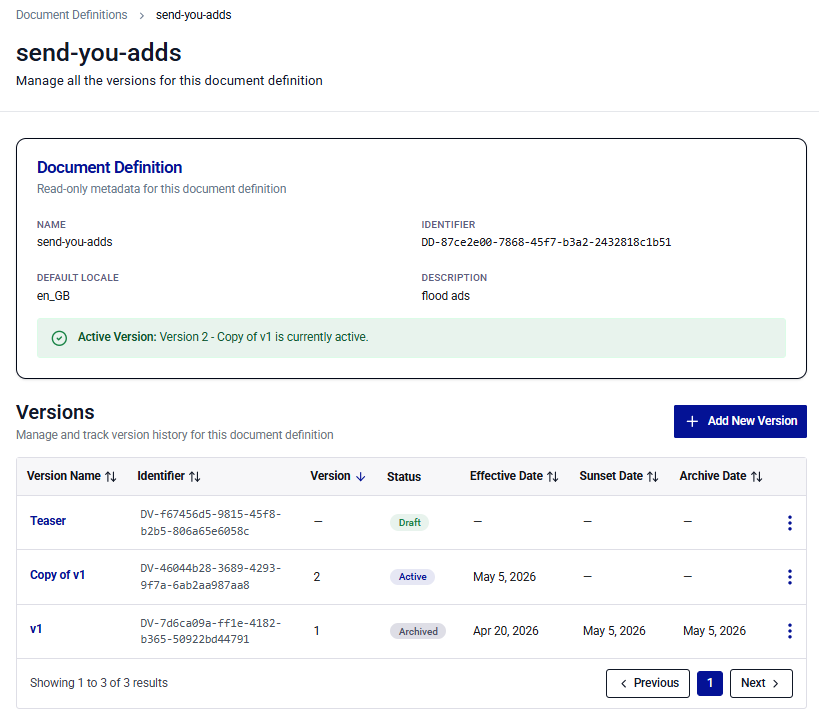
For each document version, the table includes the following information:
| Column | Description |
|---|---|
| Version Name | A friendly name for the document version |
| Identifier | A unique identifier for the document version |
| Version | The sequential version number (blank for DRAFT versions that are not yet scheduled) |
| Status | The computed lifecycle status: DRAFT, SCHEDULED, ACTIVE, SUNSET, or ARCHIVED |
| Effective date | The date when the version became active |
| Sunset date | The date when the version stops accepting new consents (if set) |
| Archive date | The date when the version is archived (if set) |
DRAFT versions with no version number appear at the top of the table.
Version actions
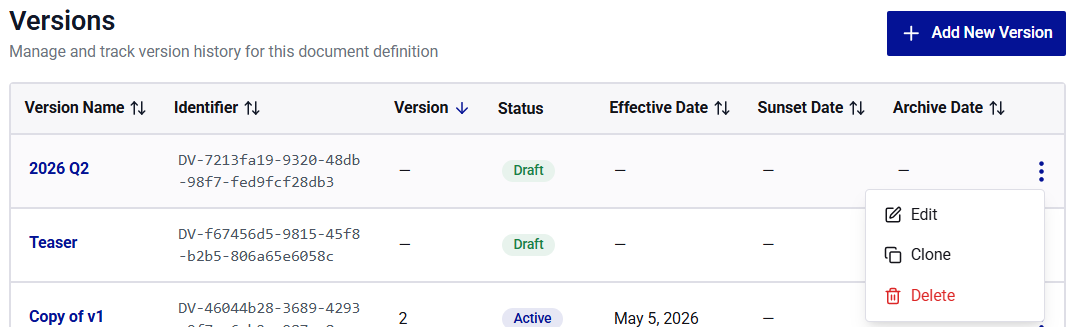
Each version row includes a menu that lists the possible actions:
| Action | Description |
|---|---|
| Edit | Opens the version details page where you can update the version name, lifecycle dates, and localizations |
| Clone | Create a new DRAFT version as a copy of this version, with all localizations copied and lifecycle dates cleared |
| Delete | Deletes the version. This action is available only for DRAFT versions. SCHEDULED versions must be unscheduled before they can be deleted. ACTIVE, SUNSET, and ARCHIVED versions cannot be deleted |
Create a document version
-
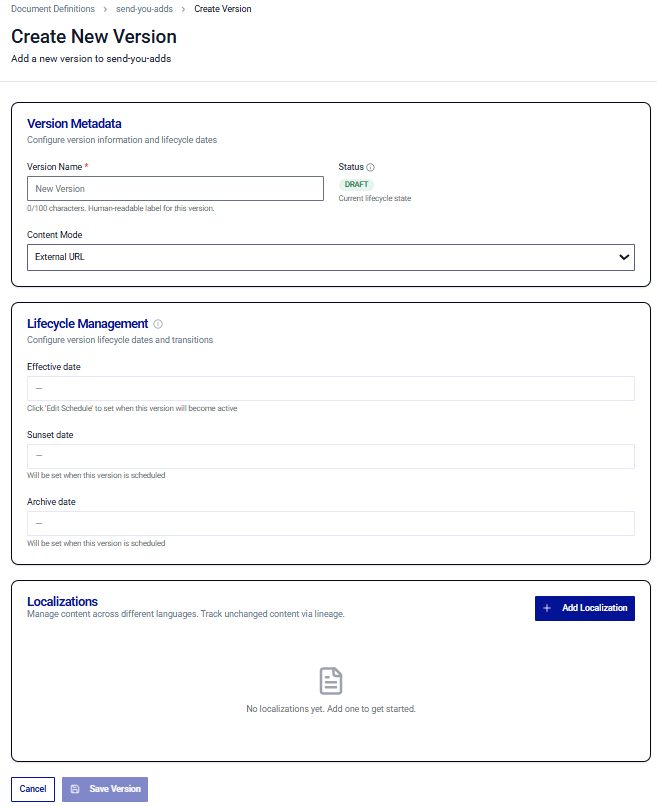
On the document details page, select Add New Version.
-
In the Version Metadata section, enter a Version name that is unique within the document.
-
(Optional) Add a localization.
-
Select Save.
The version is created in DRAFT status with no version number.
Schedule activation for a version
You can schedule the effective and archive dates for a document version. On the effective date, the version status changes to ACTIVE and replaces the version currently active, which is then archived.
When you save the schedule, the document version transitions to the SCHEDULED status and the system assigns a version number.
-
In the Versions table, select the version name.
-
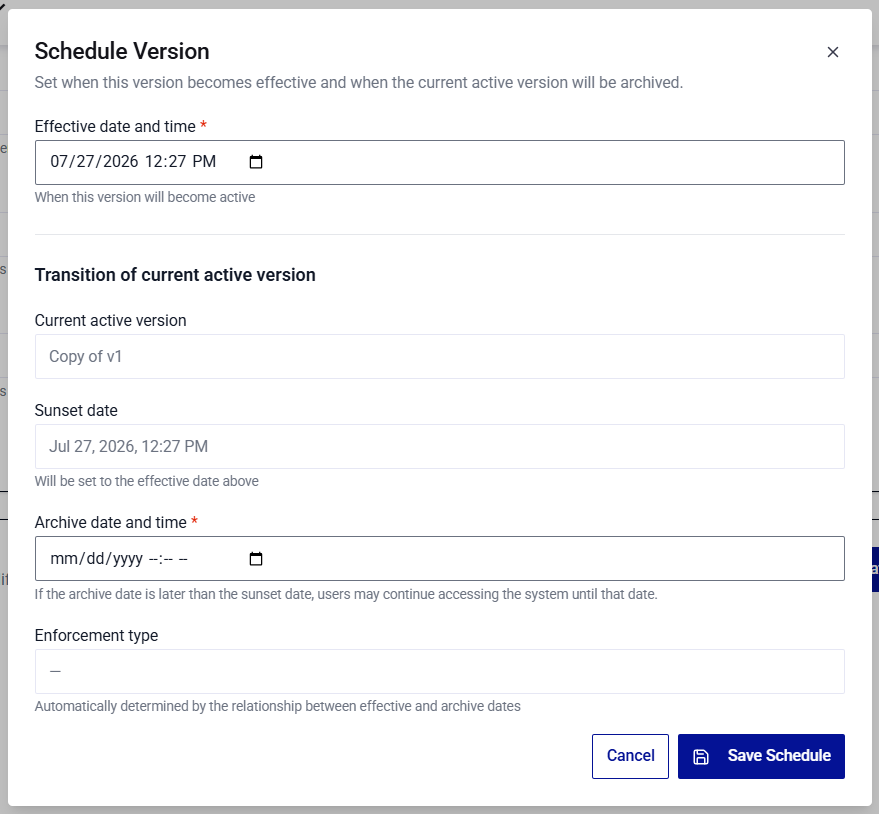
On the version details page, in the Lifecycle management section, select Edit Schedule.
-
On the Schedule Version dialog box, select the Effective date and time.
-
Select the Archive date and time.
If the archive date is later than the sunset date, users can continue to access the system until the archive date.
The Enforcement type is automatically determined based on the relationship between the effective date and archive date.
-
Select Save Schedule.
Configure a grace period
You can provide existing users with a transition period when a new version replaces an existing one.
-
In the Versions table, select the previous version (the version being replaced).
-
On the version details page, in the Lifecycle management section, select Edit Schedule.
-
Set the Sunset date to the date when you want the previous version to stop accepting new consents. This is typically the same as the new version's effective date.
-
Set the Archive date to the end of the grace period.
After the grace period, users who have not consented to the new version are blocked.
-
Save the changes.
The previous version enters SUNSET status on the sunset date, and ARCHIVED status on the archive date.
Clone a version
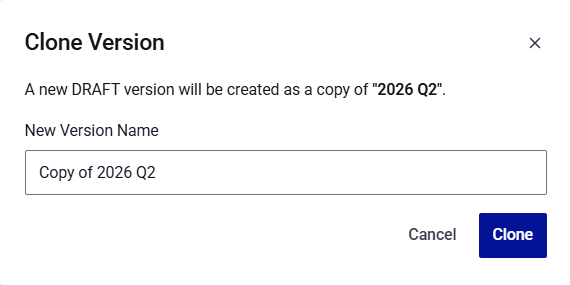
You can create a new version based on an existing version. The clone is created as a DRAFT with all localizations copied and lifecycle dates cleared.
-
In the Versions table, select the menu for the version that you want to copy.
-
In the menu, select Clone.
-
(Optional) Enter a new version name.
The default name is
{original name} (Copy). -
Select Clone.
Delete a version
Only DRAFT versions can be deleted. SCHEDULED versions must be unscheduled before you can delete them.
- On the version details page or in the version actions menu, select Delete.
Localization management
On the version details page, a table lists all localizations for the document version.
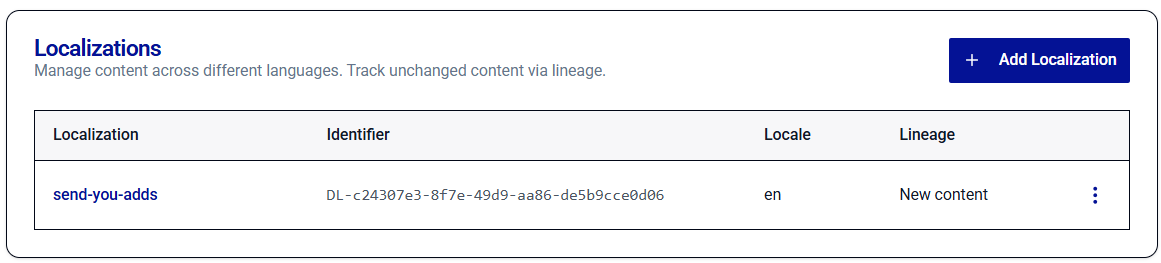
Each row includes the following information:
| Column | Description |
|---|---|
| Localization | The localized document title |
| Identifier | A unique identifier for the localized document. |
| Locale | The locale code (for example, en_US) |
| Lineage | Indicates whether the localization is NEW_CONTENT or DERIVED |
Add a localization
You can add localizations when creating a version, or at any time while the version has the DRAFT, SCHEDULED, or ACTIVE status.
-
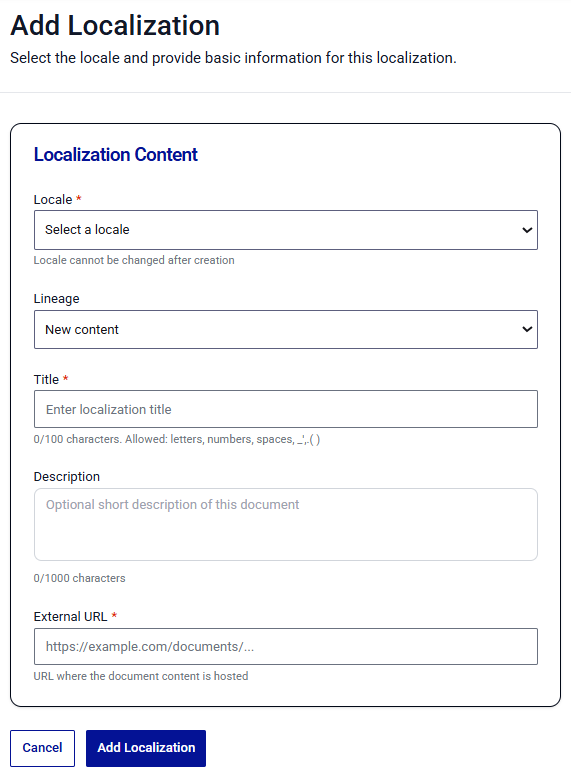
On the version details page, in the Localizations section, select Add Localization.
-
Select the Locale from the list.
The list includes only supported locales. A version can have at most one localization per language.
-
Select the Lineage:
-
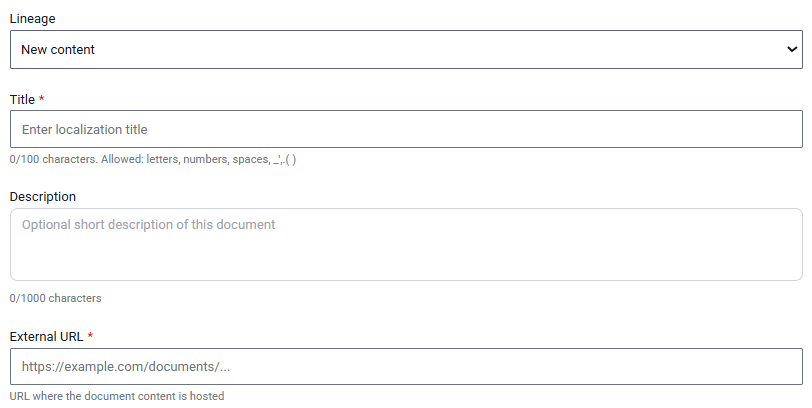
New content: The document text is new or has changed. Enter the External URL pointing to the externally hosted document.
-
Derived: The document text is legally equivalent to another localization. Select the Source Version from the available list of
ACTIVE,SUNSET, orARCHIVEDversions. Select the Source locale for the selected version. The external URL is automatically inherited.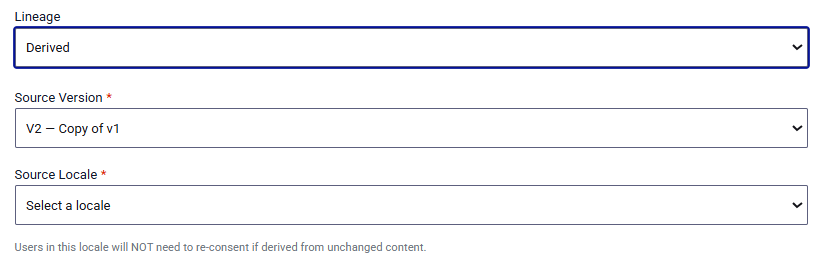
-
-
Enter the Title for the document in this language (1–100 characters).
-
Select Add Localization.
Edit a localization
You can update the Title and External URL. The Locale and Lineage fields cannot be changed after creation. Localizations on SUNSET or ARCHIVED versions are read-only and cannot be edited.
- On the localization details page or using the edit action in the localization list, edit the localization information.
Legal versus non-legal changes on ACTIVE versions
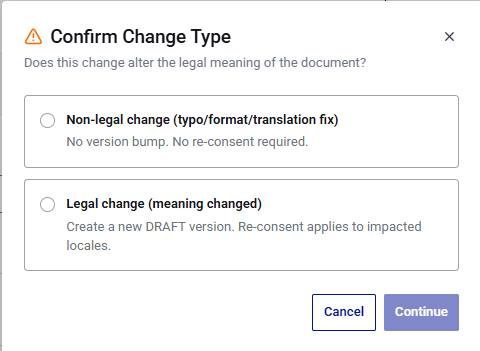
When you edit a localization on an ACTIVE version, you must classify the type of change:
-
Non-legal change (typo, format, translation fix): The change does not alter the legal meaning of the document, such as fixing a typo, correcting a URL redirect, or reformatting the content. The change is saved, and existing users are not required to provide consent again.
-
Legal change (meaning changed): The change alters the legal content in a way that requires users to provide consent again, such as adding new obligations or changing the scope of data use. When you select this option, you are redirected to the Create Version page, where you can create a new version with the updated content. The existing
ACTIVEversion remains unchanged.
Note
You are responsible for applying the correct change type. If legal content is changed without creating a new version, affected users are not prompted to provide consent again.
Delete a localization
You can delete a localization. Deletion is blocked if:
- It is the last remaining localization for the version.
- It is the localization for the document's default language and no other localization covers the same language.
Consent events
The consent ledger view provides a queryable, read-only list of all consent events for your tenant.
Search and filter events
The ledger view supports the following filters:
| Filter | Description |
|---|---|
| User ID | Filter records for a specific user |
| Document | Filter by document definition name or type |
| Consent status | Filter by GRANTED |
| Date range | Filter by the date the consent was recorded (start and end date) |
| Language | Filter by locale code |
| Mandatory | Show only mandatory or only optional document consents |
| Search | Free-text search across document name, version name, and title |
You can combine filters. Results are paginated with 50 records per page, by default.
Ledger table columns
The ledger table displays the following information per record:
| Column | Description |
|---|---|
| User ID | The user who performed the consent action |
| Document | The document name |
| Version | The version number and name |
| Language | The locale of the consented localization |
| Status | GRANTED |
| Date | The timestamp of the consent action |
| Title | The document title at the time of consent |
Export event records
Select Export to download the current filtered results as a CSV file. The export includes all fields available in the ledger record, including denormalized document metadata captured at the time of consent.

