


Stormshield SNS Setup
This section describes how to configure Stormshield SNS as an OpenID Connect (OIDC) relying party and integrate it with SafeNet Access Exchange for authentication.
This section includes the following tasks:
- Verify the NTP service
- Configure the captive portal FQDN
- Add the OIDC authentication method
- Declare security groups (OIDC group mapping)
- Create an authentication rule
- Create an access rule (UAC)
- Grant administrator rights (optional)
- Activate the captive portal
Verify the NTP service
Verify that the NTP service is enabled and operational on the Stormshield SNS, using the Europe/Paris timezone (or the timezone matching your SafeNet Access Exchange server).
Configure the captive portal FQDN
Note
Stormshield SNS builds the OIDC redirect URIs from the captive portal FQDN. Configure the FQDN before you configure the OIDC authentication method.
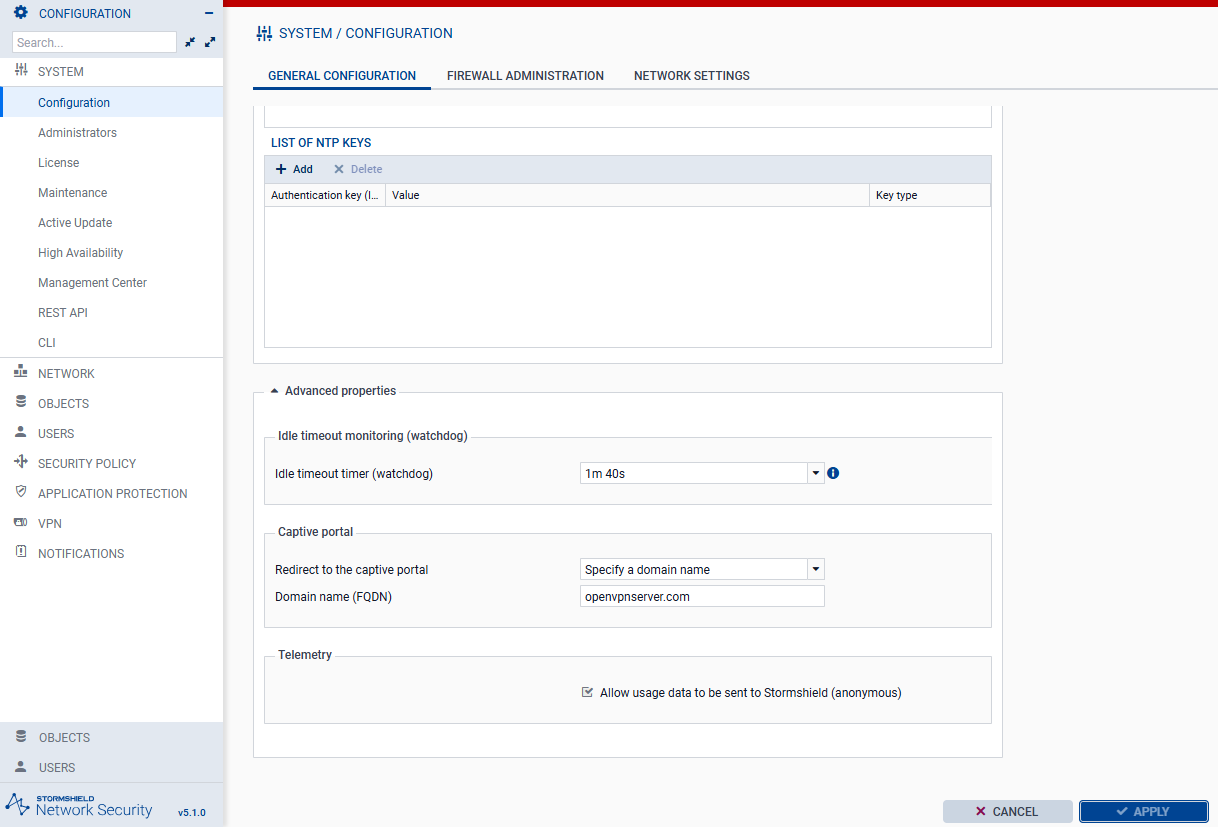
- Go to System > Configuration.
- Go to the General configuration tab.
- Expand Advanced properties.
- Under Captive portal, enter the public FQDN of your Stormshield SNS appliance, for example
openvpnserver.com. -
Select Apply.
Note
Before you continue, ensure that Stormshield SNS can connect to the required SafeNet Access Exchange endpoints. Configure the required security policy, filtering, and NAT rules for your network environment.
Add the OIDC authentication method
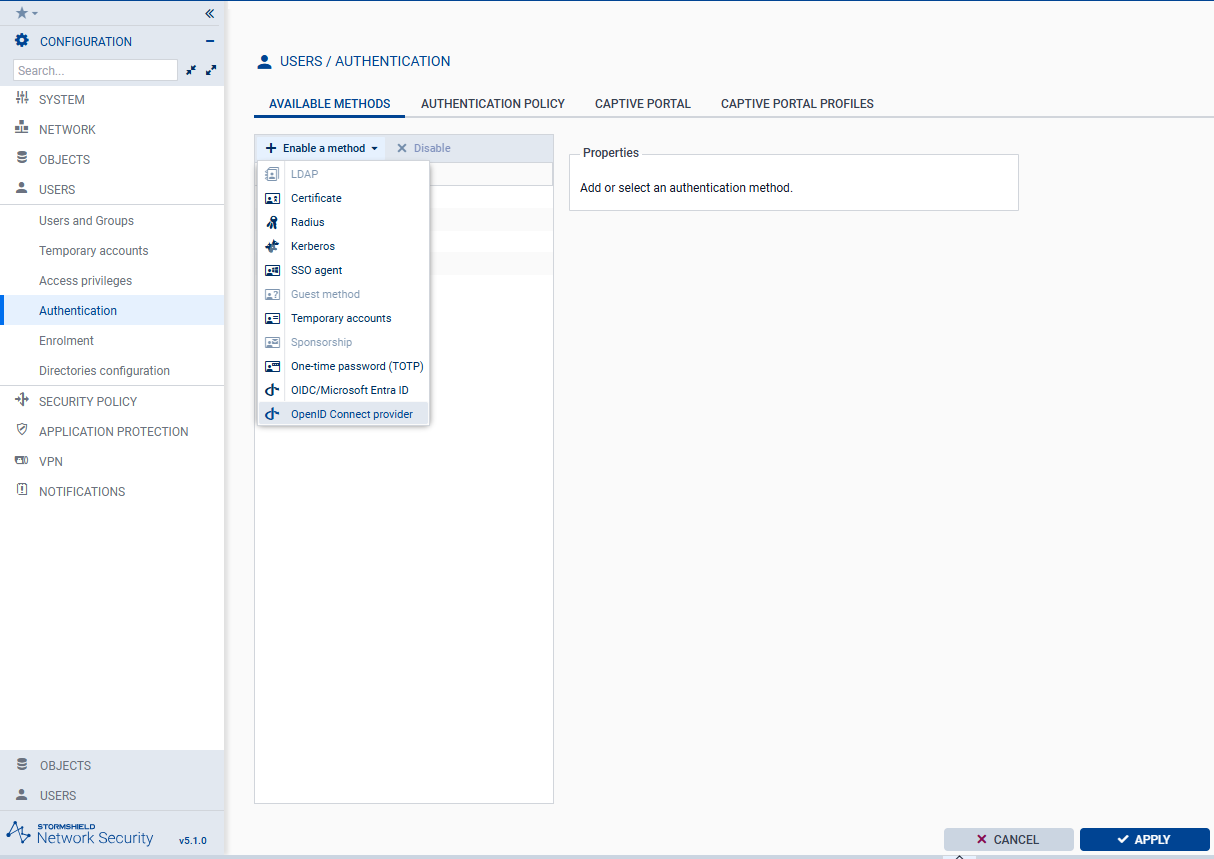
- Go to Users > Authentication > Available methods.
- Select Enable a method.
-
Select OpenID Connect provider. Do not select OIDC/Microsoft Entra ID.
-
Complete the following fields using the values you collected from SafeNet Access Exchange. For more information about where to find these values, see Obtain the SafeNet Access Exchange configuration values for Stormshield SNS.
Field Description Domain name Enter the SafeNet Access Exchange FQDN. For example, sae.kaylabs.cyou.Identity provider description Enter the text to display on the OIDC login button. For example, SafeNet Access Exchange.URL of the MS Entra ID service (Issuer ID) Enter the SafeNet Access Exchange issuer URL in the format https://<safenet-access-exchange-fqdn>/realms/<realm-name>. For example,https://sae.kaylabs.cyou/realms/SAE-HA. Despite the field label, do not enter a Microsoft Entra ID URL.Application ID (client) Enter the Client ID of the Stormshield SNS client in SafeNet Access Exchange. For example, stormshield.Client secret Enter the client secret generated for the Stormshield SNS client in SafeNet Access Exchange. Certification authority Select the CA certificate used to validate the SafeNet Access Exchange server certificate. For example, YR2.Maximum duration Enter the maximum provider session duration before Stormshield SNS requires re-authentication. For example, 1day and0hours. This field is optional.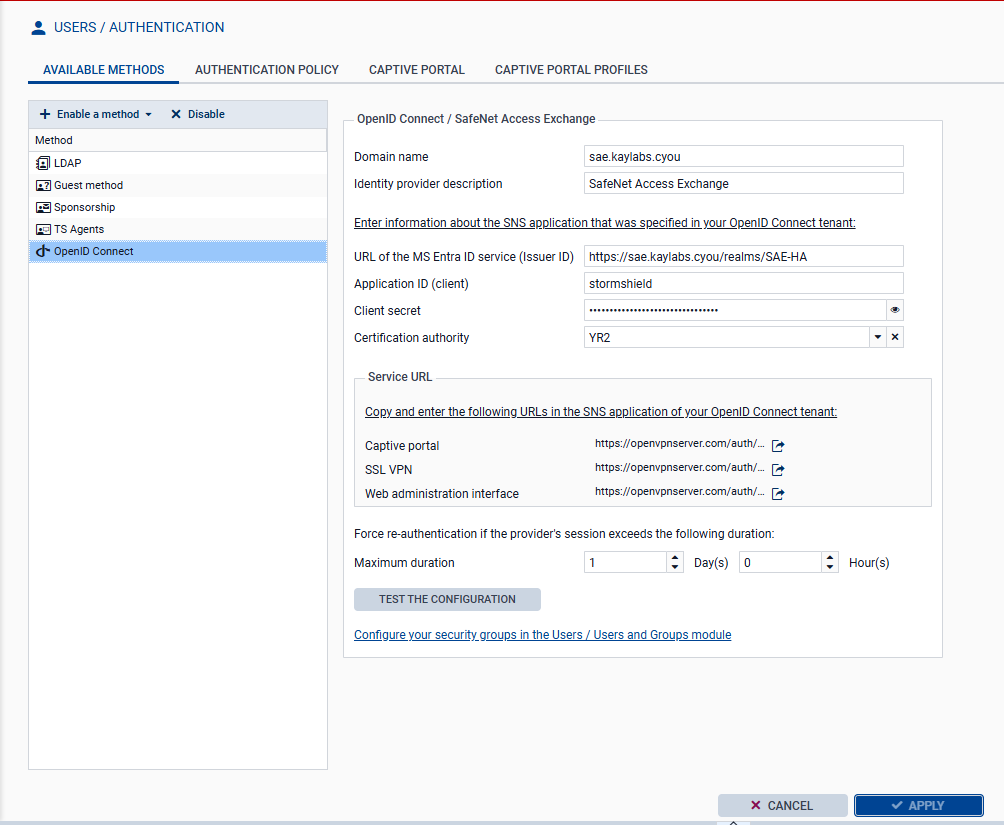
The Service URL section on the same page lists the Captive portal, SSL VPN, and Web administration interface redirect URLs. These are the three redirect URIs (
portal,sslvpn, andwebadmin) that you entered in Login settings in SafeNet Access Exchange. -
Select TEST THE CONFIGURATION.
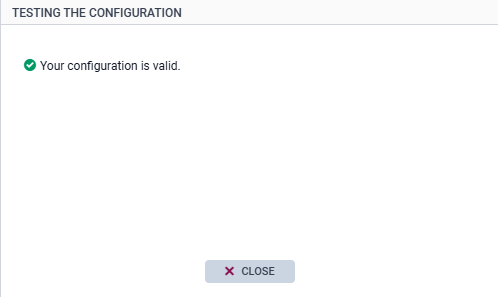
If the test is successful, Stormshield SNS displays Your configuration is valid.
This confirms that Stormshield SNS can connect to the SafeNet Access Exchange discovery endpoint and that the configured credentials are valid.
-
Select Close, and then select Apply.
Declare security groups (OIDC group mapping)
The Stormshield SNS must know the mapping between the groups declared in SAS PCE / SafeNet Access Exchange and those referenced in its own configuration.
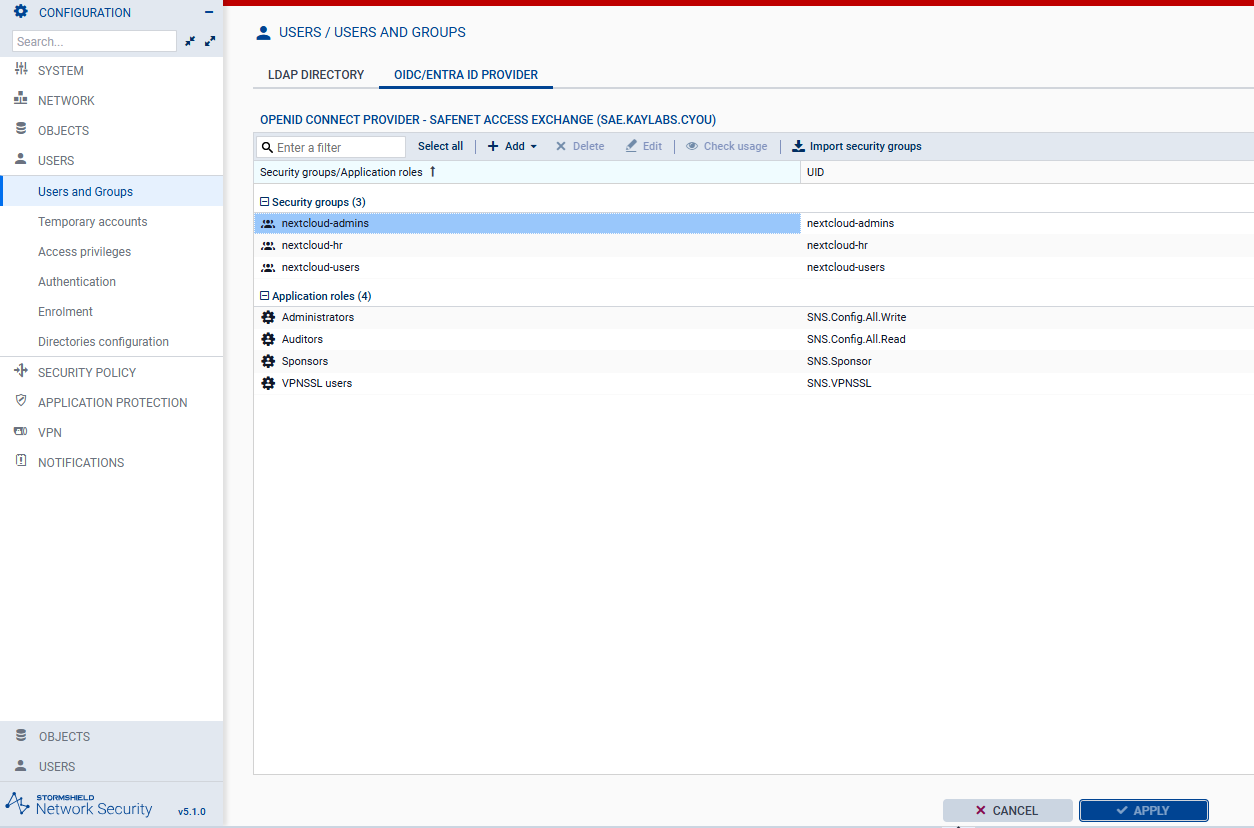
- Go to Users > Users and Groups > OIDC PROVIDER.
- Click Add.
-
Enter the exact name of the group created in SAS PCE / SafeNet Access Exchange. For example, enter
nextcloud-adminsin Name of the security group and in UID of the security group fields, and enterAdministratorsin the Description field.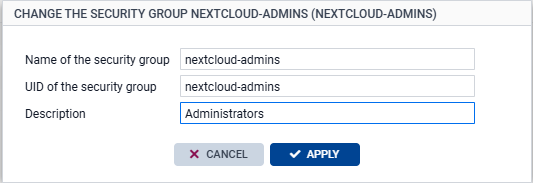
-
Click Apply.
Caution
The group name is case-sensitive and must match exactly the name defined in SAS PCE / SafeNet Access Exchange.
Create an authentication rule
The authentication rule must apply to the out interfaces (to allow captive portal access) and to the sslvpn interface (to enable SSL VPN tunnel mounting).
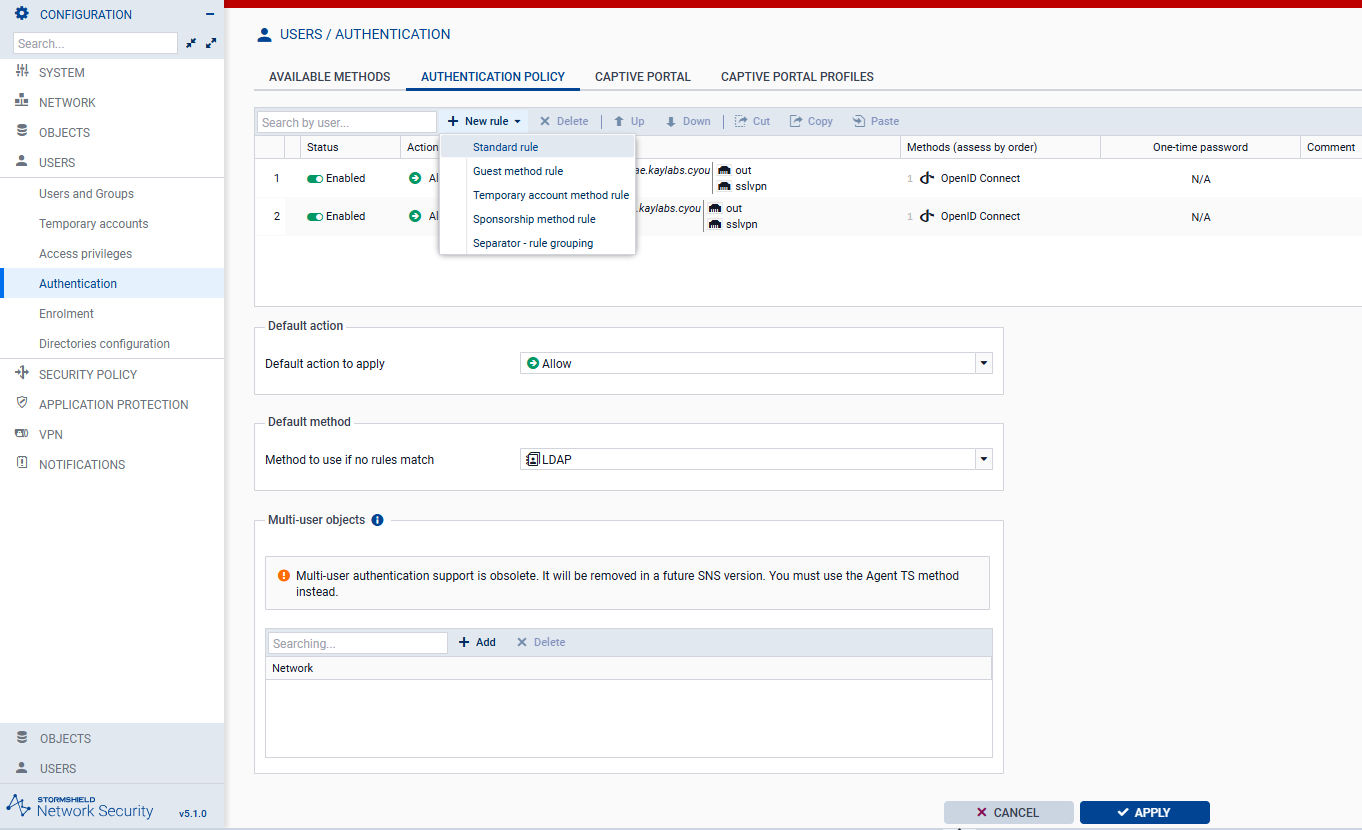
- Go to Users > Authentication > Authentication policy.
-
Click New rule and select Standard rule.
-
Configure the rule on the following tabs:
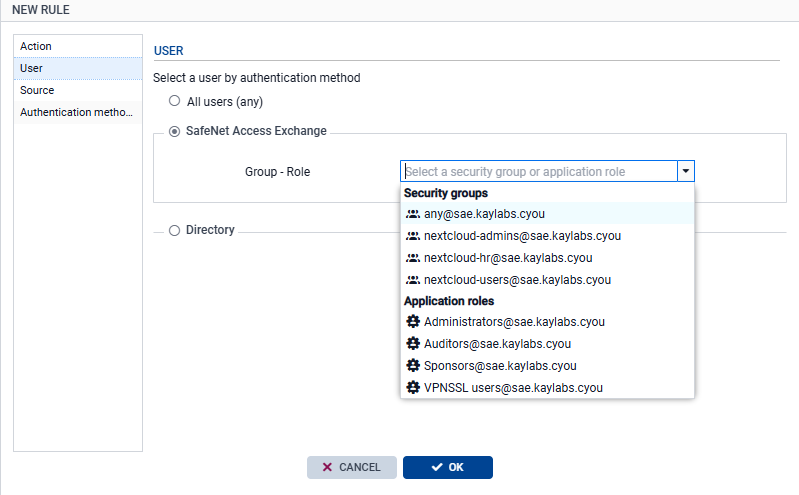
a. Under User,
- Select the SafeNet Access Exchange OIDC method.
- Select the user group or the domain group. For example, select
any@sae.kaylabs.cyou.
b. Under Source, add the interfaces authorized for SafeNet Access Exchange OIDC connections. For example,
outandsslvpn.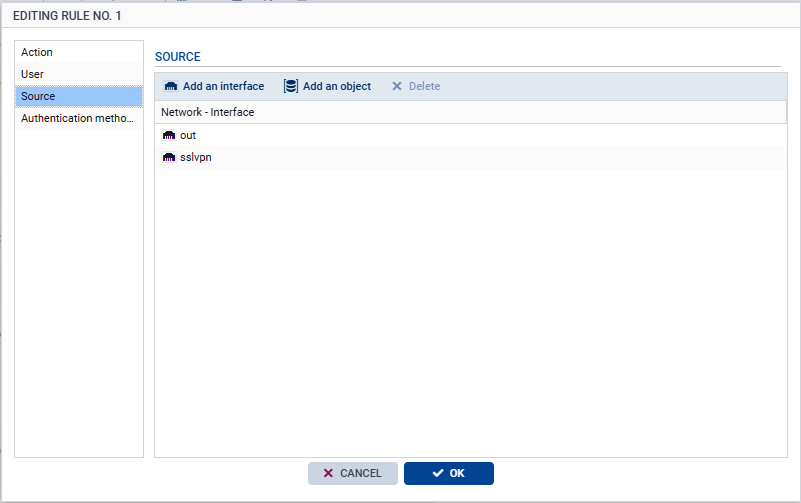
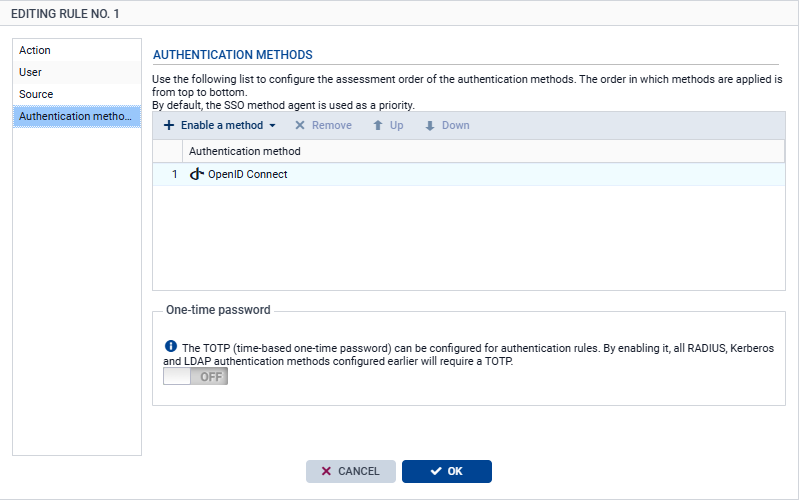
c. Under Authentication method, add the OpenID Connect method.
-
Select Apply to save the rule configuration.
- Select Enable on the newly created rule.
- Select Apply at the bottom of the page to activate the policy.
Create an access rule (UAC)
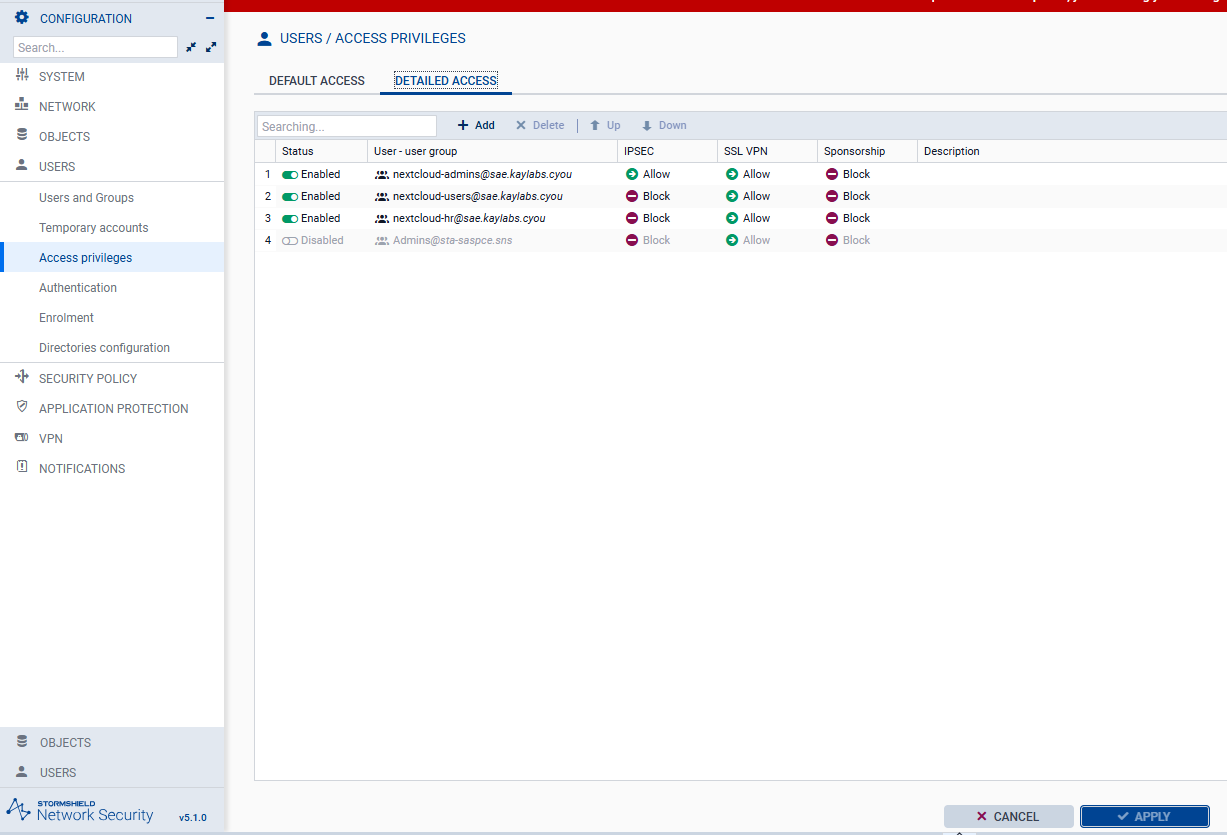
The access rule defines whether a user group is allowed or denied SSL VPN access.
- Go to Users > Access privileges > Detailed access.
- Click Add.
- Select the appropriate group. For example, select
nextcloud-admins@sae.kaylabs.cyou. - Set SSL VPN to Allow or Block for the group.
-
Select Apply.
Grant administrator rights (optional)
To allow members of a SafeNet Access Exchange group to access the Stormshield SNS administration console, assign administrator rights to the group. Assign the rights to a group that you previously declared in Declare security groups. Users who authenticate through the Web administration interface redirect URL receive the administrator rights assigned to their group.
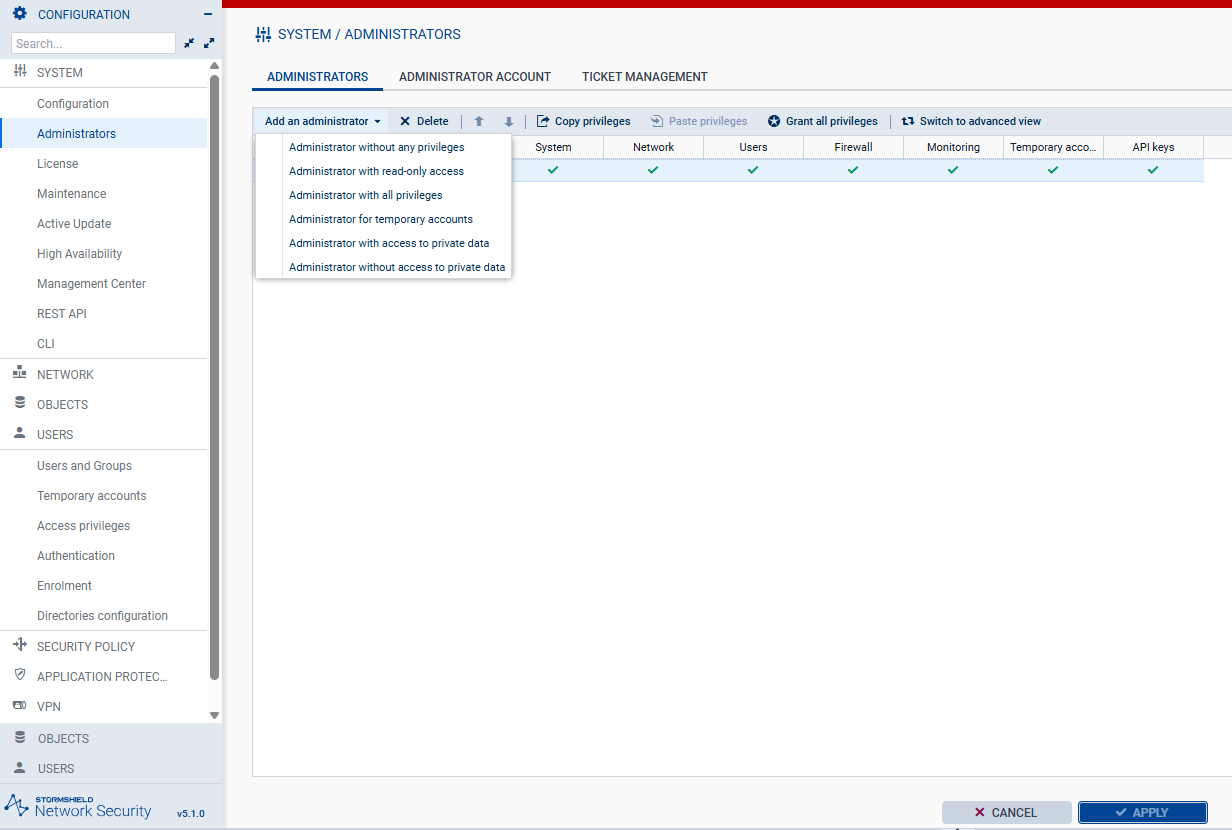
- Go to System > Administrators.
- Click Add an administrator and select the type of administrator, for example Administrator with read-only access or Administrator with all privileges.
- Select the SAS PCE / SafeNet Access Exchange group, for example
nextcloud-admins@sae.kaylabs.cyou. -
Click Apply.
Activate the captive portal
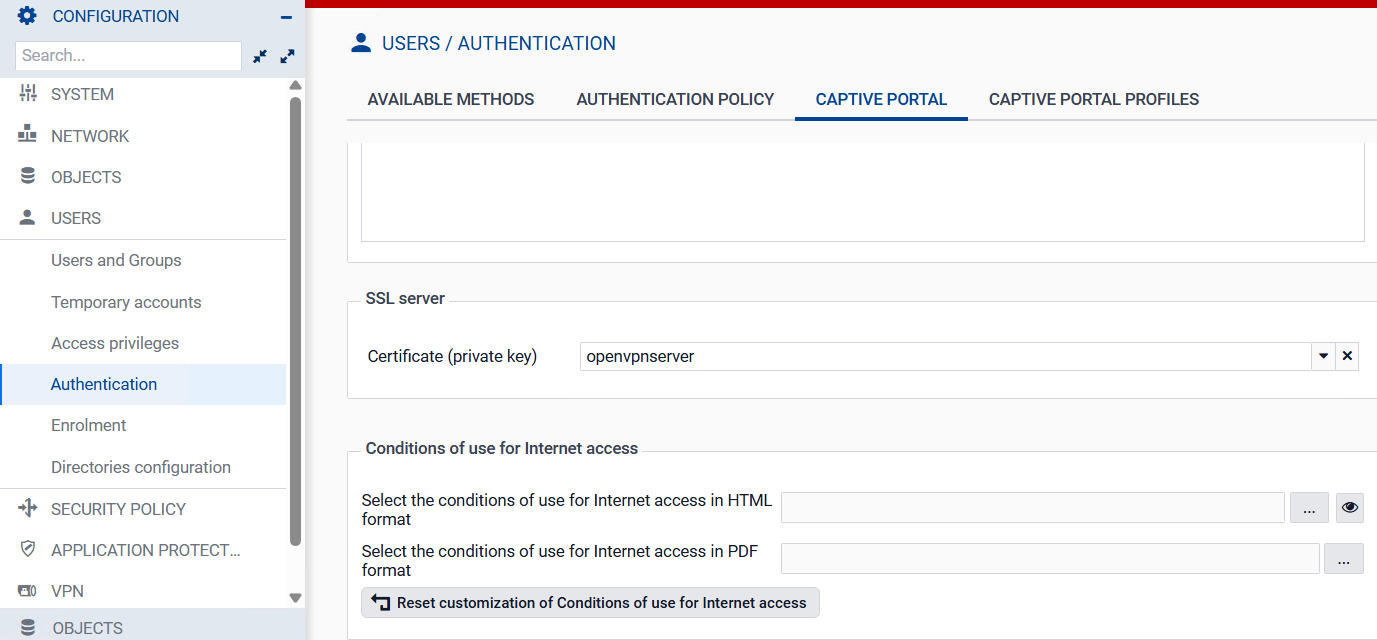
- Go to Users > Authentication > Captive portal.
-
Click the SSL server section.
-
Select the certificate to use for the Stormshield SNS captive portal.
-
Select Apply.
Caution
Applying the new SSL certificate disconnects the current Stormshield SNS administration session. Sign in again to continue.

