


Admin Login
To access this page, navigate to Settings > Authentication > Admin login.
Admin login enables administrators to sign in to the Thales Authenticator Lifecycle Manager console through an external identity provider (IDP). Configure a federation and map external IDP groups or roles to Thales Authenticator Lifecycle Manager admin roles to control administrator access to the console.
Note
Before configuring a federation, ensure that the external IDP is registered with the OneWelcome Identity Broker. For more information, see External IDP Configuration for Self Service.
To create custom admin roles for role mapping, see Admin Roles.
Federation table
The Admin login table displays the configured federations, their status, role mappings, and available actions.
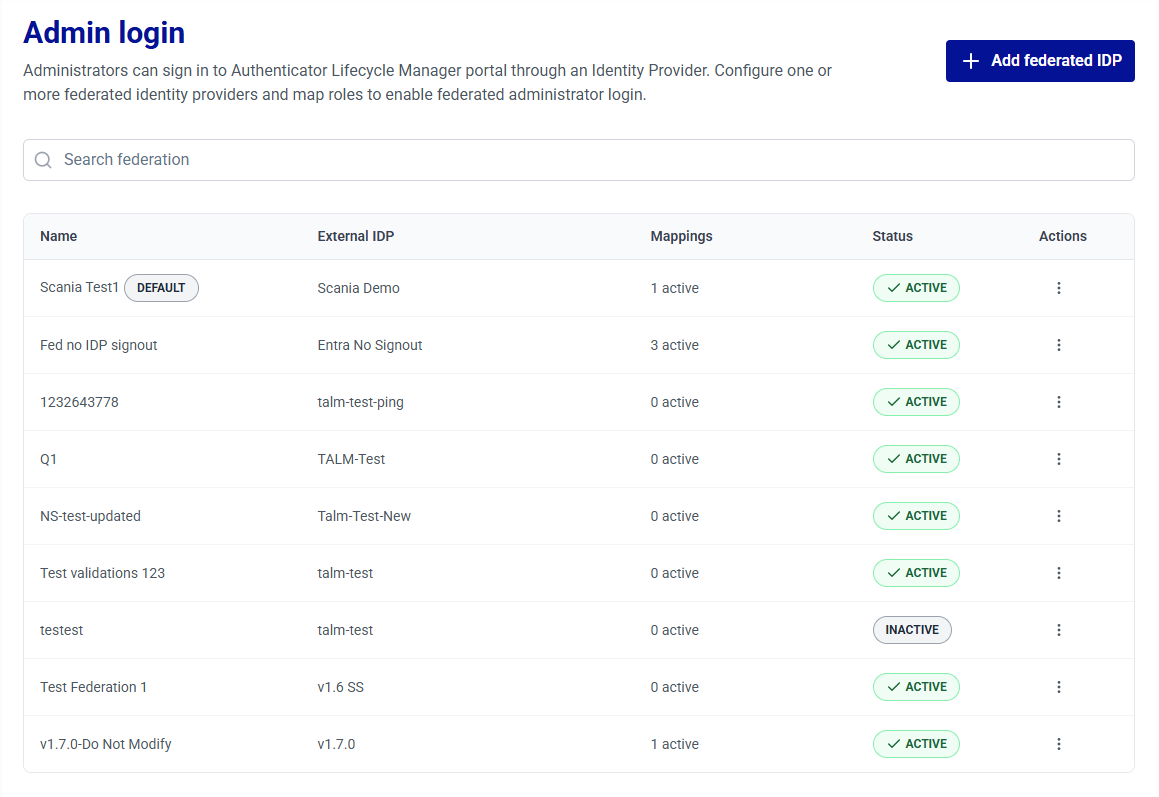
The following table explains each column.
| Column | Description |
|---|---|
| Name | Name of the federation. The recommended federation displays the DEFAULT indicator. |
| External IDP | Name of the identity broker provider associated with the federation. |
| Mappings | Number of active role mappings configured for the federation. |
| Status | Current status of the federation, ACTIVE or INACTIVE. |
| Actions | Provides options to perform the following actions on federations: - Edit federations - Delete federations |
Manage federations
Administrators can perform the following operations to manage federations:
Search federations
The search feature allows administrators to locate federations quickly. Use the search bar to filter federations and view their details based on the federation name.
Add federations
-
Under Admin login, click Add federated IDP.
-
Under Add federated identity provider, configure the following settings:
Basic Information
Complete the following fields.
Field Description Federation Name A unique name that identifies the connection in the federations list. Identity Broker Provider Select the identity broker provider to use for administrator login. Federation Display Name The name displayed to administrators when they sign in through this federation. Role Mapping
Map external IDP groups or roles to Thales Authenticator Lifecycle Manager admin roles.
Field Description External role / group name The name of the role or group as defined in the external IDP. TALM admin role Select the Thales Authenticator Lifecycle Manager admin role to map to the external role or group. - To add another role mapping, click Add mapping.
- To remove a roll mapping, click the delete
 icon next to it.
The following predefined admin roles are available.
TALM_ACCESS_MANAGEMENTTALM_CONFIGURATION_MANAGEMENTTALM_CUSTOMER_SUPPORTTALM_HELPDESKTALM_SUPER_ADMINTALM_THALES_OPERATOR
For more information about roles and permissions, see Admin Roles.
Note
Custom roles that you create under Admin roles are also available for selection.
Default Federation Settings
Field Description Active Turn on the Active toggle to activate the federation. This toggle is on by default. Set as default identity provider Turn on the toggle to set the federation as the recommended sign-in option for administrators. Connection Details
Field Description MS Graph API URL (for Entra ID) The URL (https://graph.microsoft.com/beta) used by Thales Authenticator Lifecycle Manager to connect to Microsoft Graph API. Self-Registration
Field Description Enable for self-registration Turn on this toggle to allow users to self-register in the Authenticator Manager portal. When enabled, users can configure and enroll their devices by using the provided link. For more information, see Authenticator Manager. 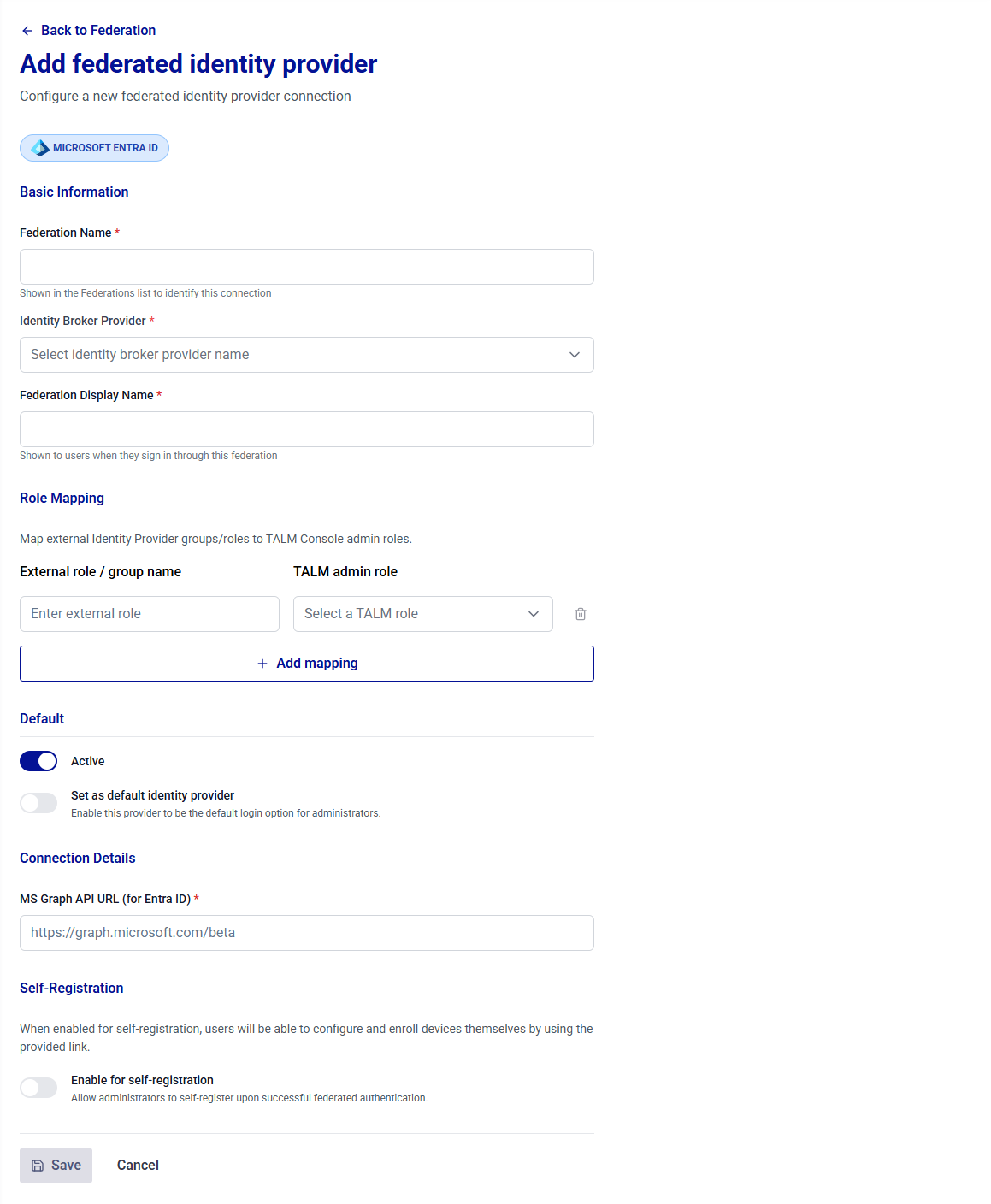
-
Click Save.
Edit federations
-
Under Admin login, search for and locate the target federation in the list.
-
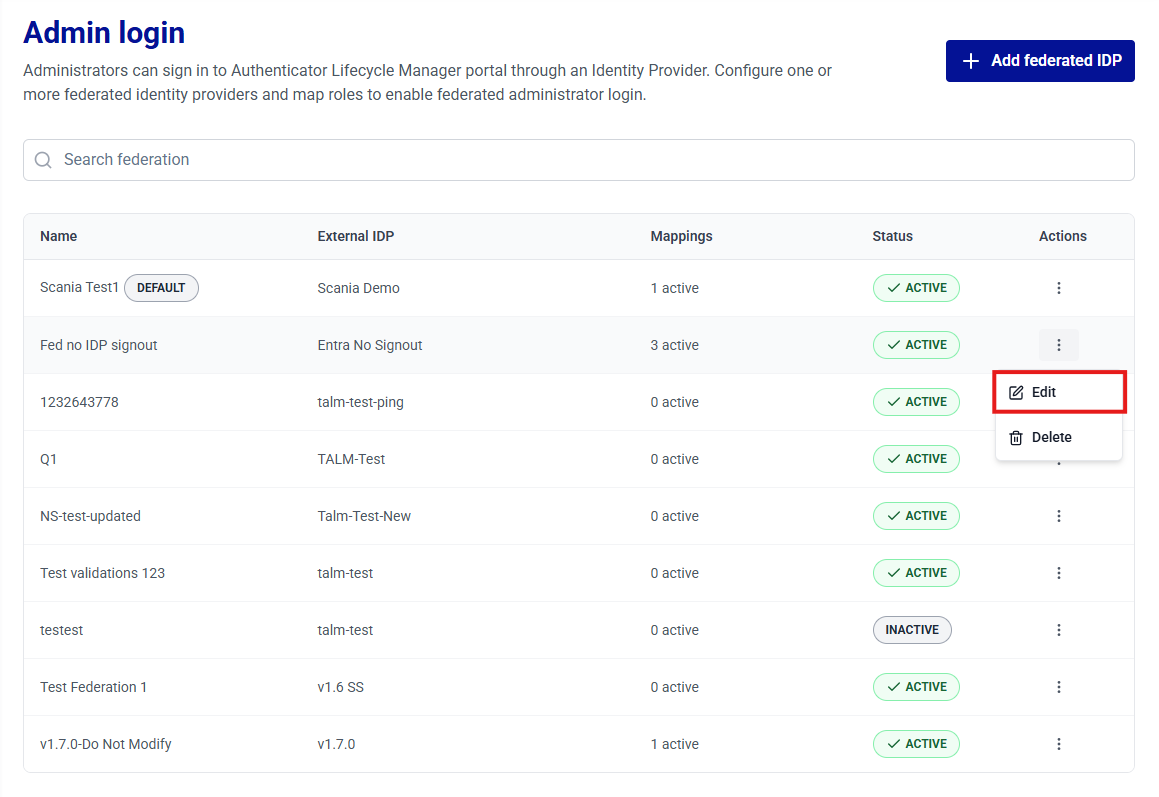
In the Actions column, click the three-dots
 icon for the federation, and then select Edit.
-
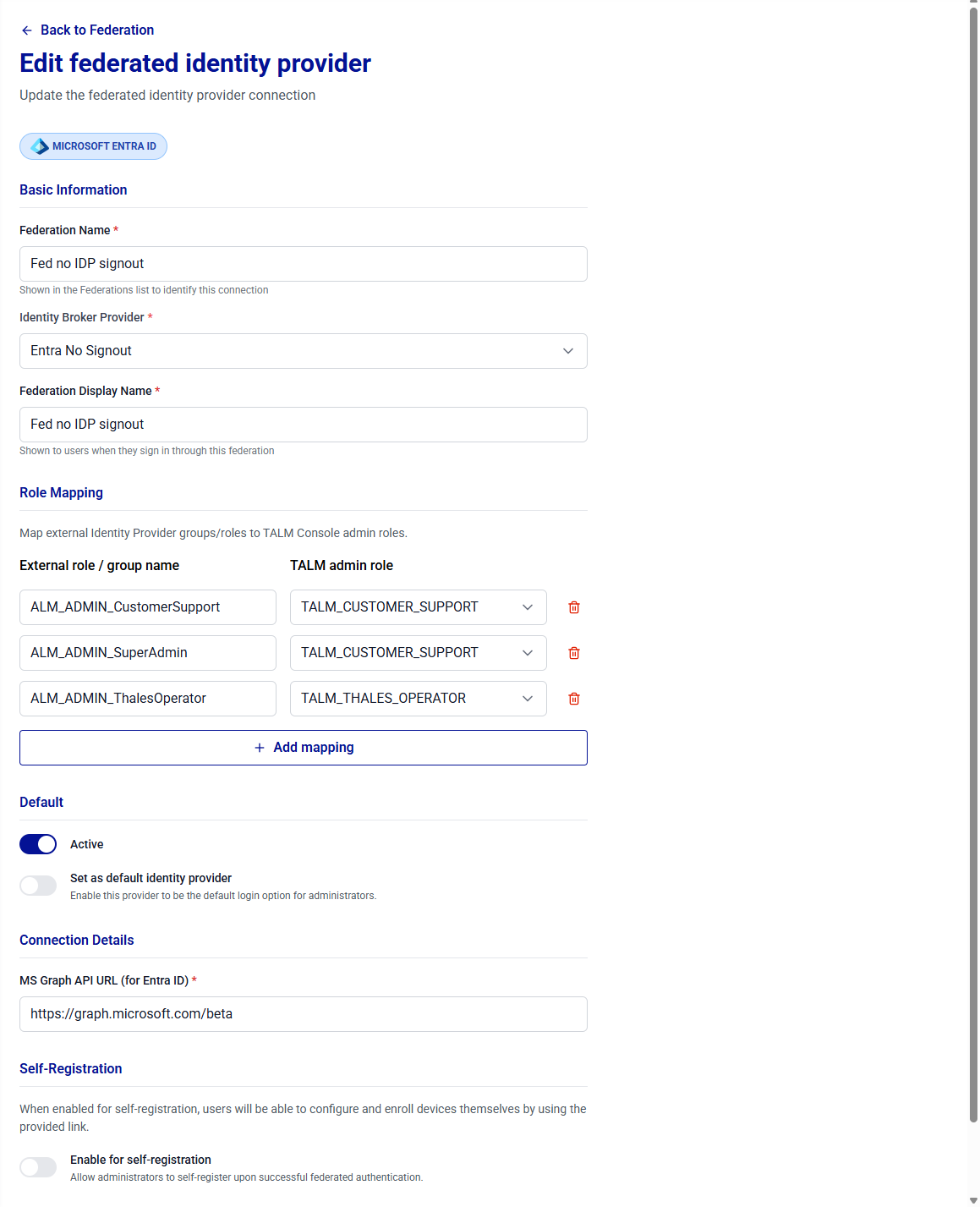
Under Edit federated identity provider, review and update the field values as required. For field descriptions, see Add a federation.
-
Click Save.
Delete federations
-
Under Admin login, search for and locate the target federation in the list.
-
In the Actions column, click the three-dots
icon for the federation, and then select Delete.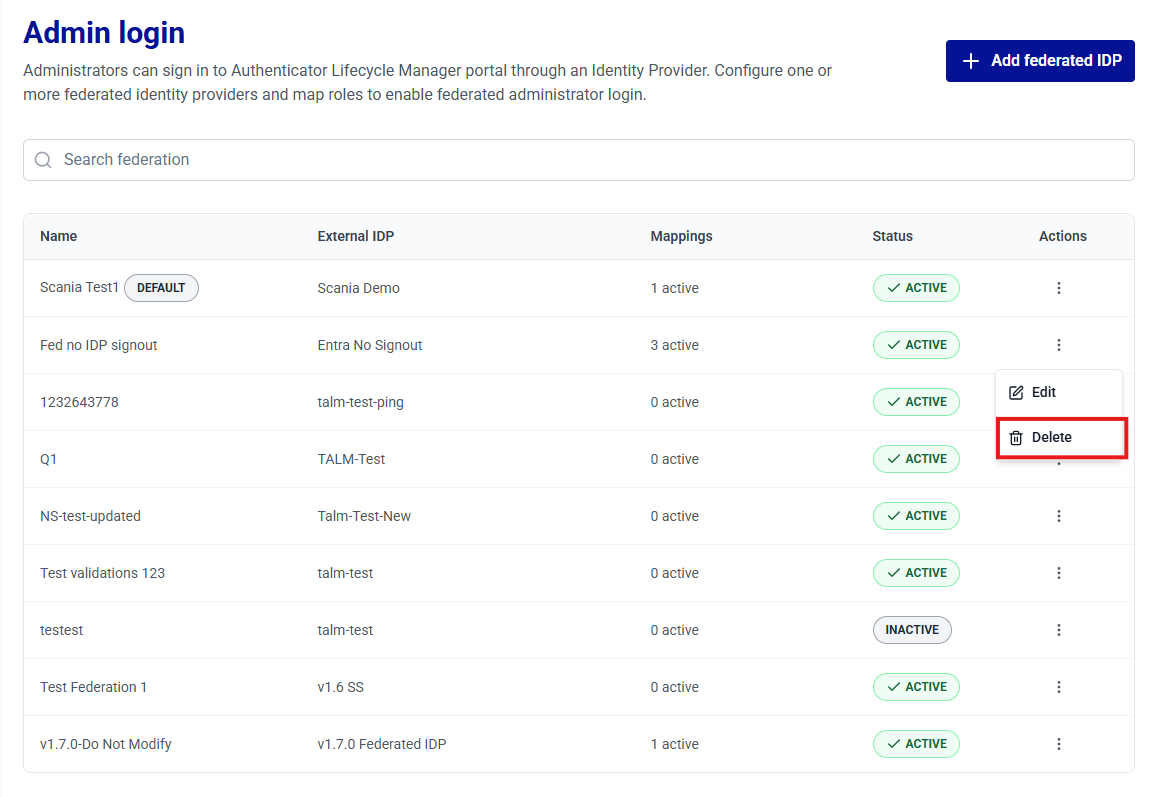
-
On the Delete window, click Delete to confirm the operation.
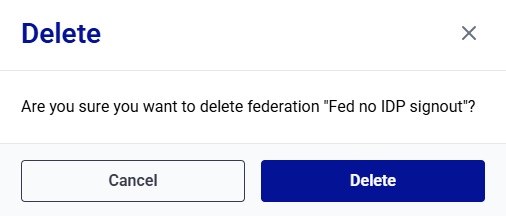
Warning
Deleting a federation removes the federated login option for the administrators who sign in through it. Before you proceed, ensure that administrators have another way to sign in to the console.

