


Thales Authenticator Lifecycle Manager with SAS PCE Enterprise
This section provides the steps to integrate Thales Authenticator Lifecycle Manager (TALM) with SafeNet Authentication Service Private Cloud Edition (SAS PCE) Enterprise. The integration requires:
Note
For SAS PCE Enterprise, the SAS Management APIs are available only on the virtual appliance. A standalone deployment of the SAS Management APIs is not supported.
Configure a FIDO Authentication Flow
FIDO authentication in SAS PCE Enterprise is configured as an authentication flow in a SafeNet Access Exchange realm, similar to adding FIDO authentication to a policy in other identity providers.
Prerequisites
-
Users for whom FIDO-based authentication will be enabled must already exist in SAS PCE Enterprise.
-
The SafeNet Access Exchange realm is configured, including the Agent BSID key and Token Validator URL. For more information, see Realm Configuration documentation.
FIDO authentication flows
SafeNet Access Exchange provides the following FIDO authentication flows. In both flows, FIDO is validated as the second factor.
| Flow | First factor | Second factor |
|---|---|---|
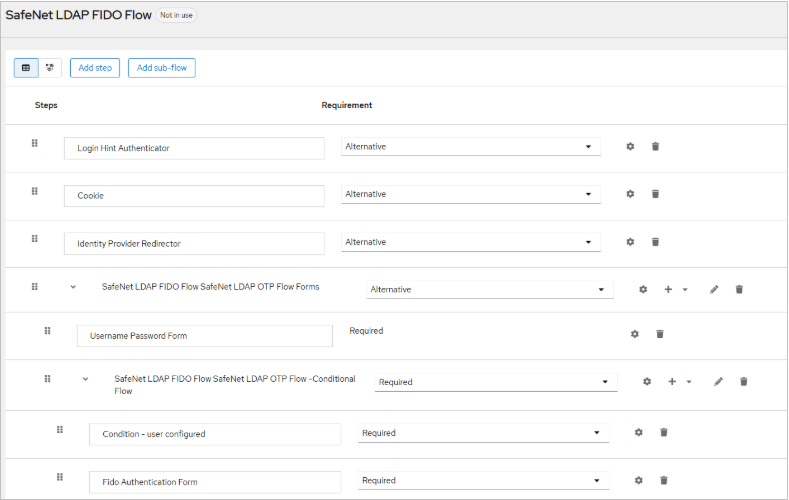
| SafeNet LDAP FIDO flow | Domain password, validated by the SafeNet Access Exchange LDAP User Federation Provider | FIDO, validated by the SafeNet Authentication Form through SafeNet Authentication Service |
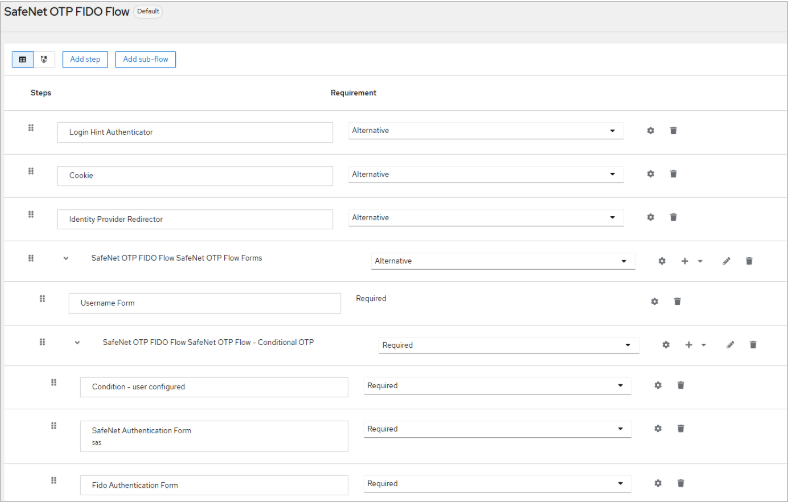
| SafeNet OTP FIDO flow | OTP, validated by the SafeNet Authentication Form through SafeNet Authentication Service | FIDO, validated by the SafeNet Authentication Form |
The following image shows the SafeNet LDAP FIDO Flow:
The following image shows the SafeNet OTP FIDO Flow:
Caution
Using FIDO as the first or only authentication factor is not recommended. Authenticate users with another method, such as OTP or LDAP, before FIDO enrollment.
Add a FIDO flow to an existing realm
Perform the following steps to add a SafeNet OTP FIDO flow to an existing realm:
-
Log in to the SafeNet Access Exchange Admin Console.
-
In the left pane, select the target realm.
-
Select Authentication, select the Flows tab, and then select SafeNet OTP Flow.
-
From the Action drop-down list, select Duplicate.
-
In the Duplicate Flow window, enter the details, and then select Duplicate.
-
Open the duplicated flow. Under the Conditional OTP section, add a FIDO Authentication Form step.
-
From the Requirement drop-down list for the step, select Required.
Note
To create a custom SafeNet LDAP FIDO flow, duplicate the SafeNet LDAP Flow instead. In an existing realm, place the LDAP Session Details Authenticator directly after the Username Password Form, at the same level.
For more information, see the Configure FIDO authentication flow for existing realms.
Obtain the SAS Management API Credentials
To configure SAS PCE Enterprise in Thales Authenticator Lifecycle Manager, you need to obtain the values of the following parameters:
- SAS Management API client ID
- SAS Management API client secret
- Authentication server base URL
- API server base URL
Prerequisites
Before obtaining the credentials, ensure that:
-
The SAS PCE virtual appliance is configured (
sudo configure-sae). -
You have access to the SAE admin account.
-
You have the SAS PCE tenant code of the tenant that you want to integrate.
Note
The appliance configuration wizard sets up the SAS Management API client (sas-mgmt) only for the primary tenant selected at first boot. For each child tenant added later in the SAS PCE Console, create a separate client. For more information, see SAS Management API setup.
Perform the following steps:
-
In a web browser, go to
https://<appliance-fqdn>/admin/, and log in with the SAE admin account. -
From the realm selector in the upper-left corner, select SASManagementAPI.
-
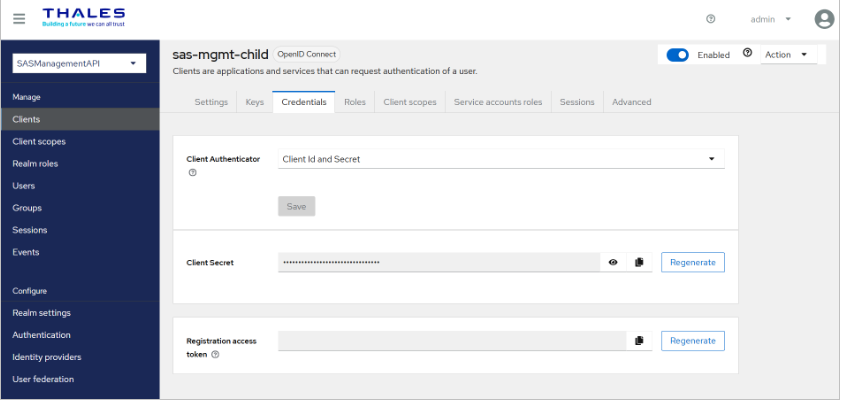
Select Clients, and open the SAS Management API client for the tenant (for example,
sas-mgmtfor the primary tenant). Copy the Client ID and paste it into a text editor. -
Select the Credentials tab, and ensure that Client Authenticator is set to Client Id and Secret.
-
Copy the Client Secret and store it in a secure location. If you need a new secret, select Regenerate next to Client Secret, and copy the value immediately.
Caution
-
The plaintext secret is not displayed again after you leave the page. Store it securely, in accordance with your organization's security policies.
-
Regenerating the secret invalidates the existing secret. Update every integration that uses the previous secret.
-
-
Derive the following URLs:
-
Auth Server Base URL: https://<appliance-fqdn>/realms/Operator/protocol/openid-connect/token
For example, https://sae.devlab.sta.cpliam.com/realms/Operator/protocol/openid-connect/token
-
API Server Base URL: http://<appliance-fqdn>:5003
For example, https://sae.devlab.sta.cpliam.com:5003
-
After obtaining the required values, enter them in the Thales Authenticator Lifecycle Manager console while adding the SAS PCE Enterprise identity provider. Once the values are entered, select Test Connection to confirm that the connection is successful. For detailed instructions, refer to the Configure SAS PCE Enterprise section.

